Team and permissionsChecked against the product on
Roles and permissions
Every member has one of four system roles, and each role has permissions you can change. Create custom roles for specific jobs, add overrides for one person, see what a member without a permission gets, and how your Moving POS team comes in.
On this page
Before you start
- The Manage staff & permissions permission to change roles, or View staff & roles to look only.
What a member can see and do in the back office is set by their permissions: they come from their role, or from their custom role if they have one, then from their own overrides. Changes apply at once.
System roles
| Role | Who it suits |
|---|---|
| Owner | Holds every permission, always, and alone manages admins and billing. |
| Admin | Runs the store, the team and the settings, except what stays with the owner by default. |
| Manager | Day-to-day work on products, orders and marketing, at every location or at chosen ones. |
| Staff | Handles orders, returns and customer messages, and can view the catalogue and stock. |
These are the defaults for some key permissions; you can change them for every role but the owner:
| Permission | Held by default by |
|---|---|
| Manage payment providers | Owner only |
| View plan & invoices and Change plan | Owner only |
| Close the store | Owner only |
| Refund above the computed amount | Owner only |
| Manage staff & permissions | Owner and Admin |
| Issue refunds | Owner and Admin |
| Manage products | Owner, Admin and Manager |
| Process orders | Every role |
Change a role’s permissions
Step 1: Open Role permissions
Open Settings › Team › Role permissions. At the top, System roles shows each role’s member count and description; below it, the Permissions by role table is split into groups such as Catalogue and Orders & payments.
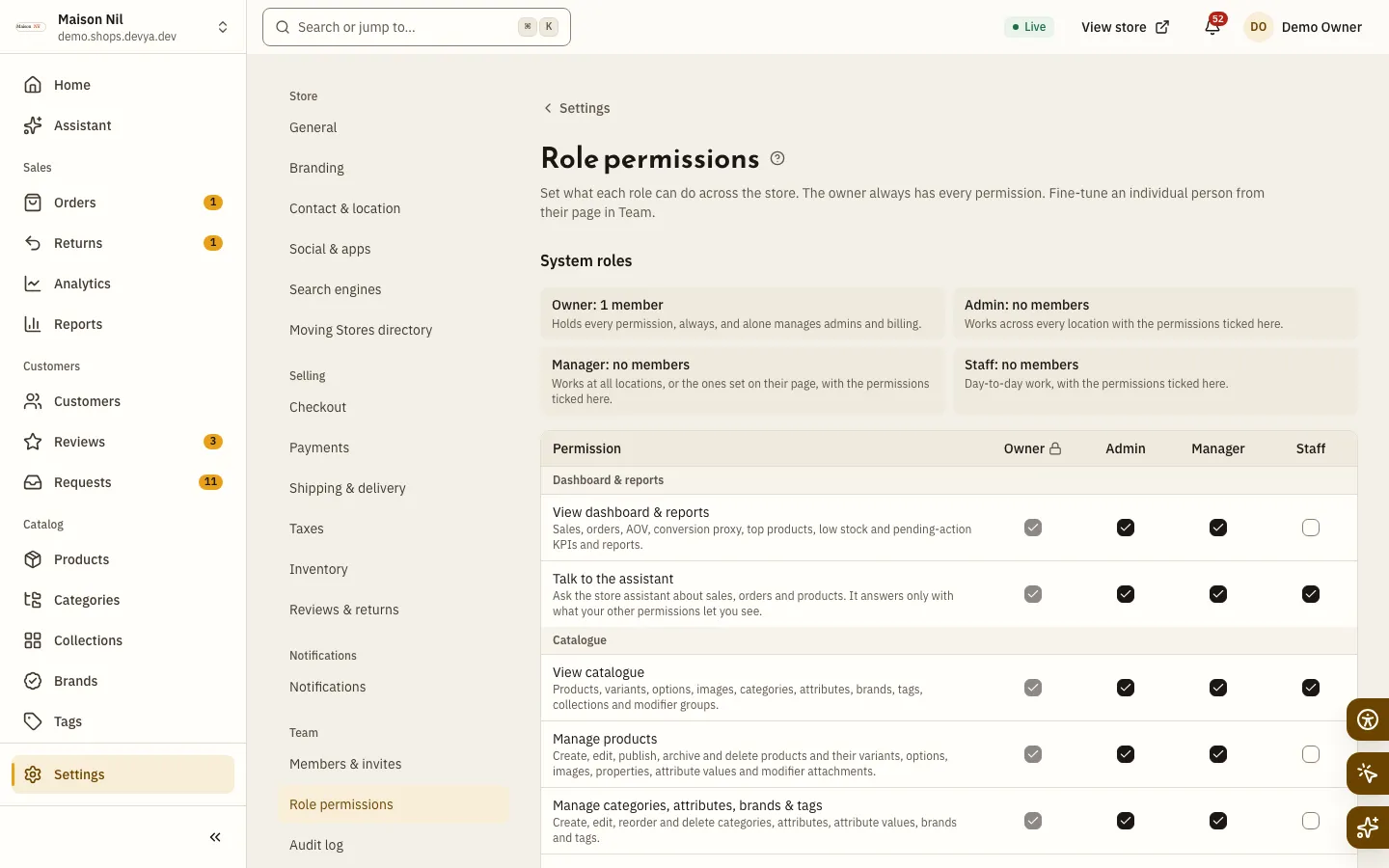
Fig. 1 —On a phone, pick the role from the buttons above the table. Step 2: Turn permissions on or off
Tick or clear the box in the role’s column. The Owner column is locked because Owners always have every permission. You can’t change a role at or above your own, nor grant a permission you don’t hold.
Step 3: Save
Select Save with the role’s name, like Save Manager. To undo every change you made to the role, select Restore defaults; member overrides stay as they are.
Custom roles
When no system role fits a job, like a packer or a content editor, create a custom role. Each custom role is built on a system role, which decides who can manage it and which location rules apply; its permissions are your choice.
Step 1: Create the role
In the Custom roles section at the bottom of Role permissions, select New role.
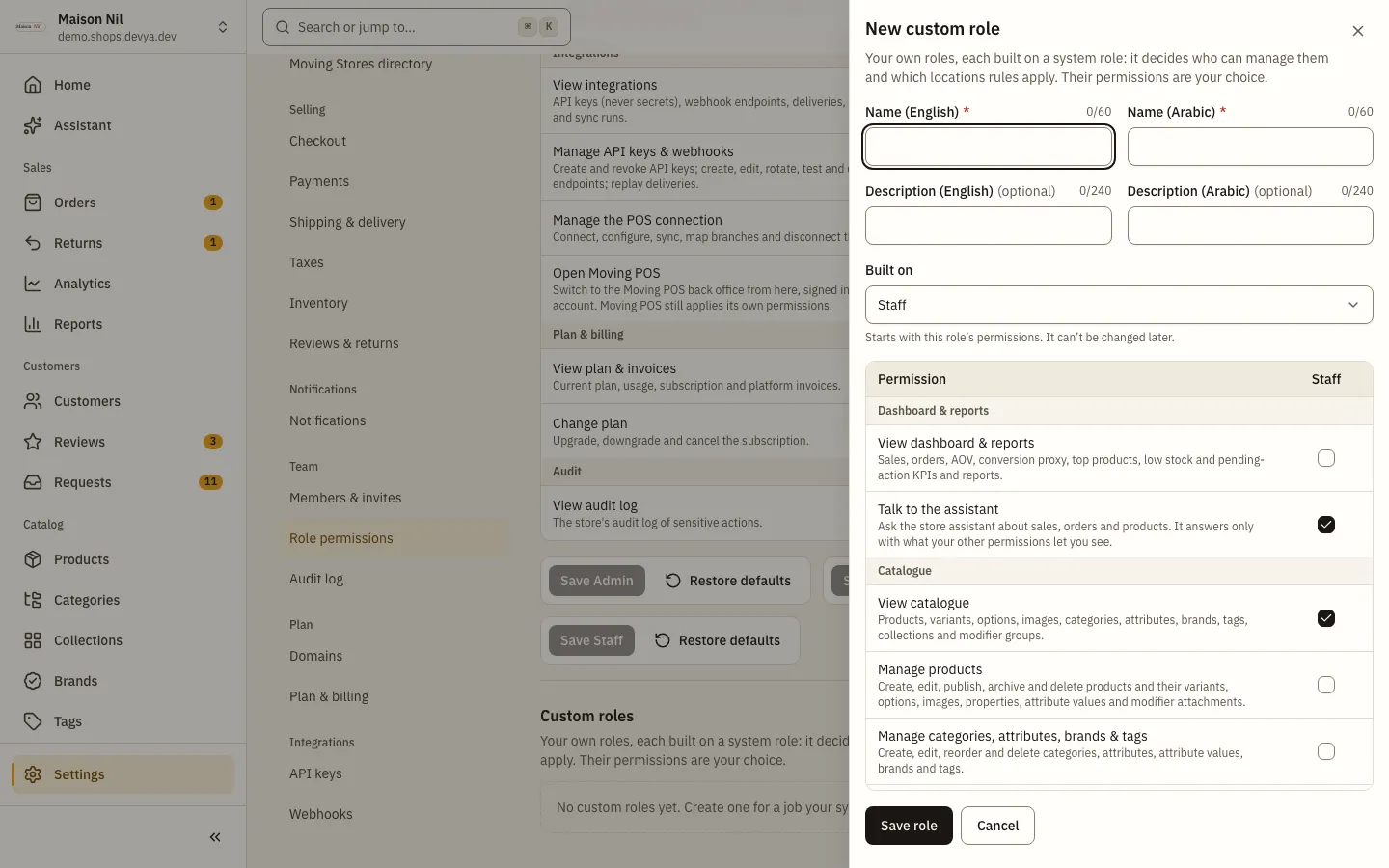
Fig. 2 —The role starts with the permissions of the role it is built on. Step 2: Name it and pick its base
Enter Name (Arabic) and Name (English), a description if you like, and choose Built on: Admin, Manager or Staff. The base can’t be changed later.
Step 3: Choose its permissions and save
Turn on what the job needs and turn off the rest, then select Save role.
- Give the role to a member with the Custom role field in the invite dialog or on the member’s card. The field shows when custom roles are built on the chosen role.
- From the custom role list: Edit, Duplicate and Delete. A role used by a member or a pending invite can’t be deleted; move them to another role first.
- Up to
30custom roles per store. - You create or change a custom role only when it is built on a role below yours.
Overrides for one member
To change one person’s permissions without touching their role, open their card from Members & invites, change what you need under Permissions, then select Save permissions. Each such row is marked Changed from role default, and Reset to role defaults removes their overrides. The owner’s permissions can’t be changed.
What a member without a permission sees
- The sidebar doesn’t show what they can’t open.
- If they open a page they lack the permission for, You don't have access to this page appears with the permission they need, and a Back to home button.
- A button they can’t use stays visible but disabled, with a hint naming the permission: “Needs the “…” permission — ask the store owner or an admin.”
Your team from Moving POS
If your restaurant is linked to Moving POS, the people who may enter the online store from there can open this back office without signing in again. They get a seat on their first visit, and the Joined via column shows Moving POS. Their role is set like this:
- A brand-wide Moving POS manager becomes Admin if they may manage the online store there, otherwise Manager.
- A branch manager becomes Manager, limited to the location mapped to their branch.
- Nobody from Moving POS becomes Owner, and cashiers and other roles get no seat.
Staff sync
To prepare their seats before their first visit and keep their roles and locations in step with Moving POS, turn on the sync. It is off by default and both sides have to agree:
Step 1: In Moving POS
The Moving POS owner turns on staff sharing in Moving POS › Integrations › Online store.
Step 2: In this back office
Open Settings › Integrations › Moving POS, and on the Staff from Moving POS card turn on Keep staff in step with Moving POS. It needs both Manage staff & permissions and Manage the POS connection, and works on a paired connection only.
Step 3: Check the result
The card shows the Last run with how many were added, updated and disabled, and a Left alone list with the reasons. Select Sync staff now to run it at once.
Can I create a completely new role?
Yes: a custom role built on Admin, Manager or Staff, with the permissions you choose. The four system roles are fixed.
Why can’t I turn on a permission for a role?
Because you don’t hold it yourself, or the role is at or above yours. Nobody can grant a permission they don’t have.
Do a member’s overrides go when I change their role?
No. Their permissions follow the new role, and the overrides you set stay until you select Reset to role defaults.