Orders and fulfilmentChecked against the product on
Follow and manage your orders
The orders list keeps every order of your store in one place: narrow it with tabs and filters, find any order, hear the new-order alert, and print the invoice or packing slip.
On this page
Before you start
- The View orders permission.
In the sidebar, open Sales › Orders. Here are your online store’s orders and the ones your team creates with New order. For each order the table shows its number, date, customer (or Guest), status, payment, fulfilment and total, plus a Location column when you have more than one location.
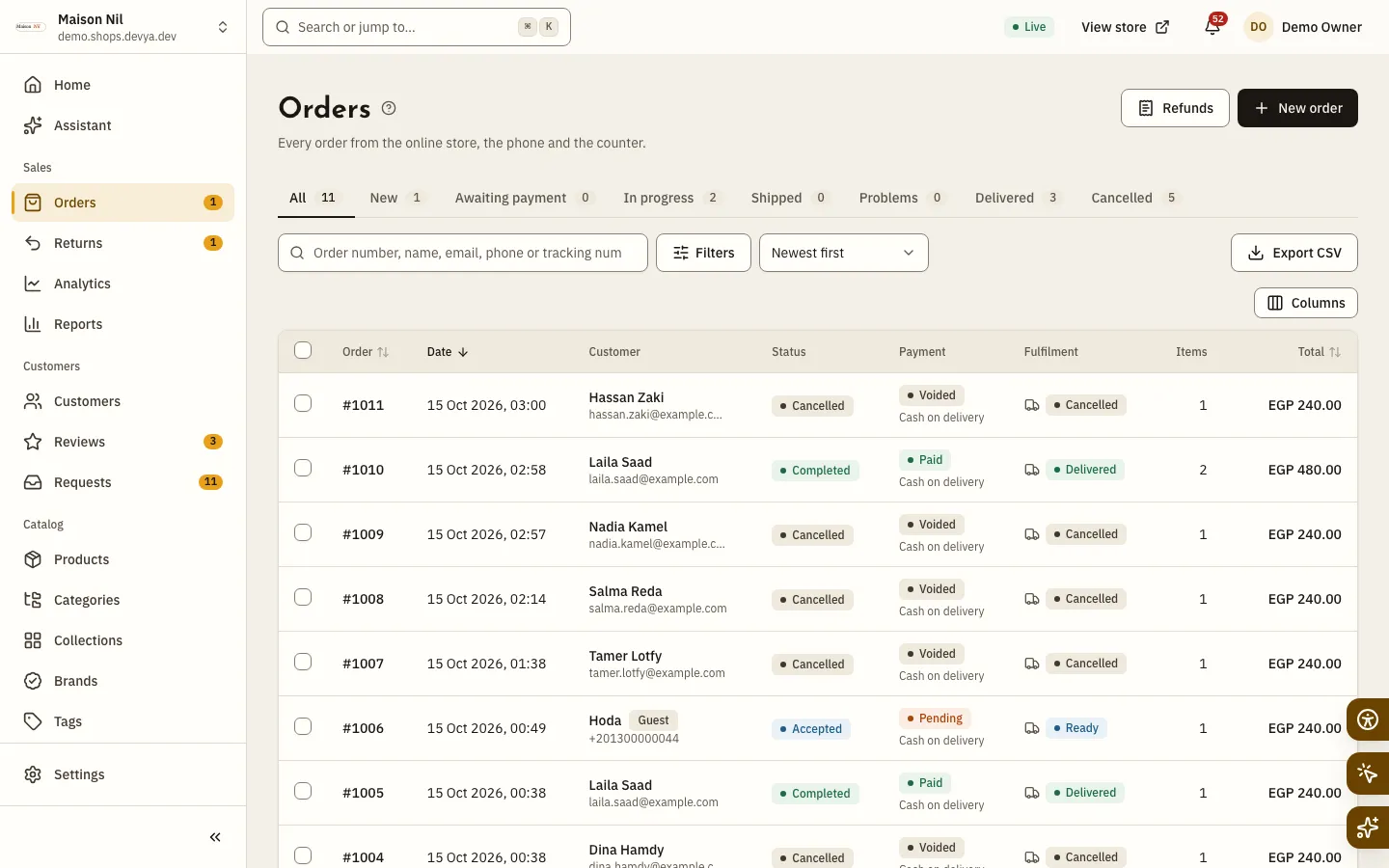
The tabs
| Tab | What it shows |
|---|---|
| All | Every order. |
| New | Orders that arrived and are not accepted yet. |
| Awaiting payment | Online orders whose payment is not complete, and bank transfers not confirmed yet. |
| In progress | Accepted orders that have not left for shipping or delivery yet. |
| Shipped | Accepted orders out for shipping or delivery. |
| Problems | Orders whose delivery failed or that are on their way back to the store. |
| Delivered | Completed orders. |
| Cancelled | Cancelled or rejected orders. |
Search and filter
- Search by order number, name, email, phone or tracking number.
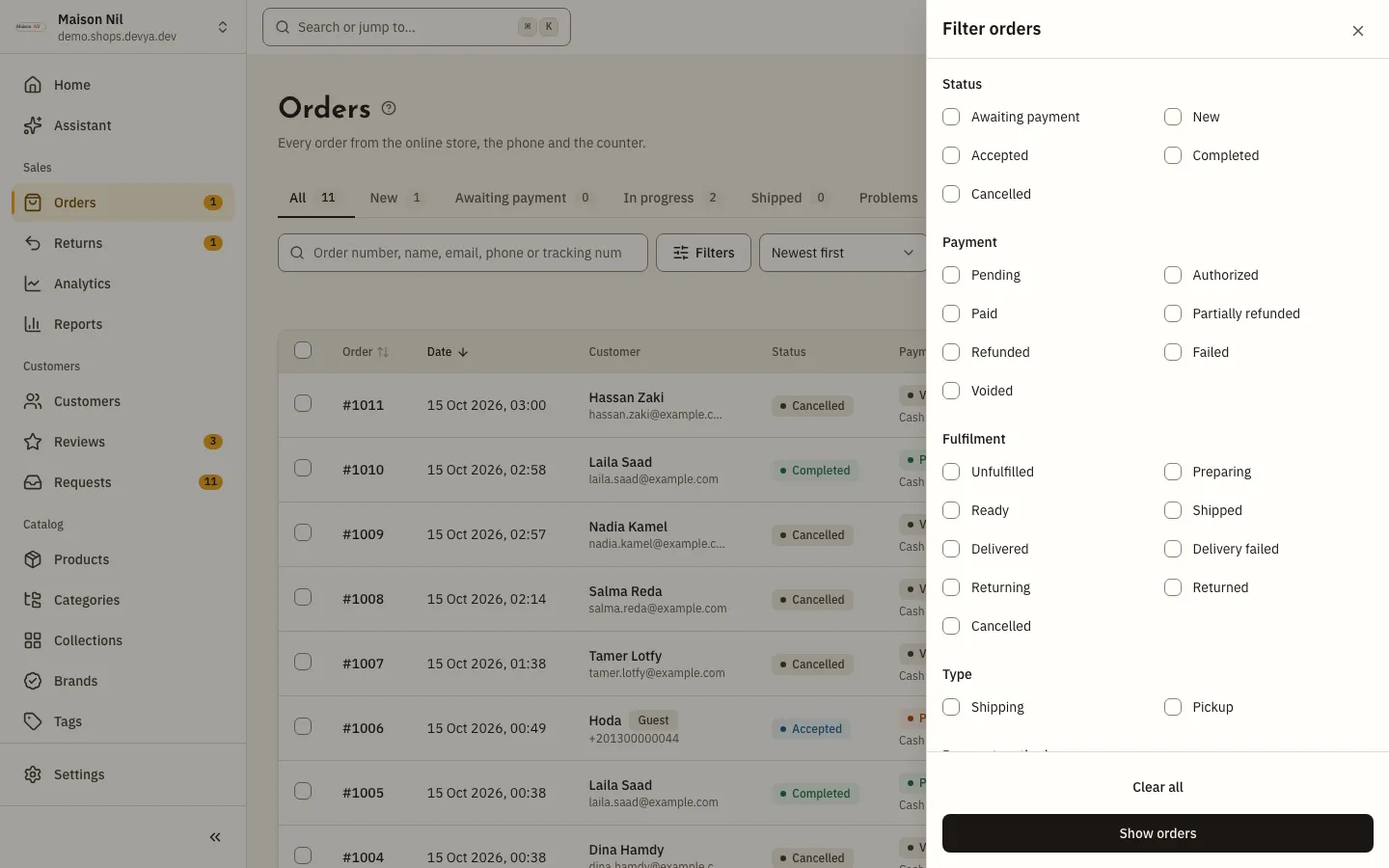
- Click Filters to narrow orders by Status, Payment, Fulfilment, Type, Payment method, Channel, Carrier, Location, date and Total, or choose Has an open return, then click Show orders.
- In a restaurant the filters add Scheduled for today, and Sort adds Scheduled time, soonest first for scheduled orders.
- Sort starts at Newest first; you can also sort by the time placed, the order number or the total.
- Each active filter shows as a chip above the table, and the page address keeps your filters and search, so a bookmark brings them back.
Open an order
Click an order’s row to open its page. Three badges sit at the top: order status, payment and fulfilment; below them are the items, the Summary, the customer, the address, Payments and the Timeline. One button offers the next step, and the other actions are under More actions; every step is in Fulfil an order from accepted to delivered.
To leave a note on the order, write it in Add a note in the Timeline. Turn on Visible to customer to show it on their order page, and Email the customer to send it to them, then click Add note.
Bulk actions and export
Select up to 50 orders to get Accept, Start preparing, Print invoices and Print packing slips, and Print courier labels when some of them have a courier label. Accepting and preparing need the Process orders permission, and in a restaurant a bulk accept asks for the Preparation time (minutes); leave it empty to keep each order’s own time.
To download orders, click Export CSV and choose One row per order or One row per item. The file follows the current tab, filters and search, up to 50,000 rows, and needs the Export orders permission.
New-order alerts
While the back office is open in your browser, it checks for new orders every 15 seconds, in a background tab too. When an order arrives, a New order alert appears with a View button, and the browser tab’s title shows the number of new orders until someone opens the Orders page. If the list is open, a button with the count of new orders appears above it; click Show to refresh it.
- The sound is on by default for restaurants and off for shops. Change it for this device in your account menu: New-order sound.
- The browser keeps the sound silent until you click on the page once; click Turn on order sound if the bar appears, or Keep sound off.
- Turn on New-order notifications in your account menu to get system notifications on this device while you are not looking at the tab.
Print the invoice and packing slip
Step 1: Open the order and pick the document
Click More actions, then Print invoice or Print packing slip. An order still Awaiting payment has no document yet.
Step 2: Set the paper and language
Choose the Paper: A4 or 80 mm receipt, then the Document language: The order’s language, العربية or English.
Step 3: Print
Click Print to open the browser’s print window. To keep a copy, choose to save as PDF in that window.
The packing slip is for whoever prepares the order: the items with their add-ons and notes, no prices, and Cash to collect on cash-on-delivery orders. The invoice’s heading follows your tax settings: Invoice without a tax number, Tax invoice when tax is on with a tax number, and Simplified tax invoice with a ZATCA QR code for stores in Saudi Arabia.
Why didn’t I hear the new-order sound?
The back office has to be open, you have to click on the page once so the browser allows sound, and New-order sound has to be on for this device.
How many orders can I print or export at once?
Up to 50 orders for bulk actions and printing, and up to 50,000 rows in an export file.
Why don’t I see Export CSV or New order?
Your role lacks the Export orders or Create orders permission. Ask the store owner for it: Roles and permissions.