Orders and fulfilmentChecked against the product on
Fulfil an order from accepted to delivered
Move an order one step at a time with the buttons on its page: accept it, prepare it, then ship it, send it with a driver or hand it over at the branch. Cancel it or refund it when you need to.
On this page
Before you start
- The Process orders permission. Cancelling needs Cancel or reject orders, refunding needs Issue refunds, and confirming a bank transfer needs Confirm manual payments.
The order page shows three badges: order status, payment and fulfilment. Only the buttons the current stage allows appear: a main button for the next step, and the rest under More actions.
The statuses
| Badge | Values |
|---|---|
| Order status | Awaiting payment, New, Accepted, Completed, Cancelled |
| Payment | Pending, Authorized, Paid, Partially refunded, Refunded, Failed, Voided |
| Fulfilment | Unfulfilled, Preparing, Ready, Shipped, Delivered, Delivery failed, Returning, Returned, Cancelled |
A shop order: shipping or pickup
Step 1: Accept the order
Open the order from the New tab and click Accept order, then confirm. The customer is emailed that the order was accepted. If it is a bank transfer that isn’t confirmed yet, turn on Accept before the transfer arrives.
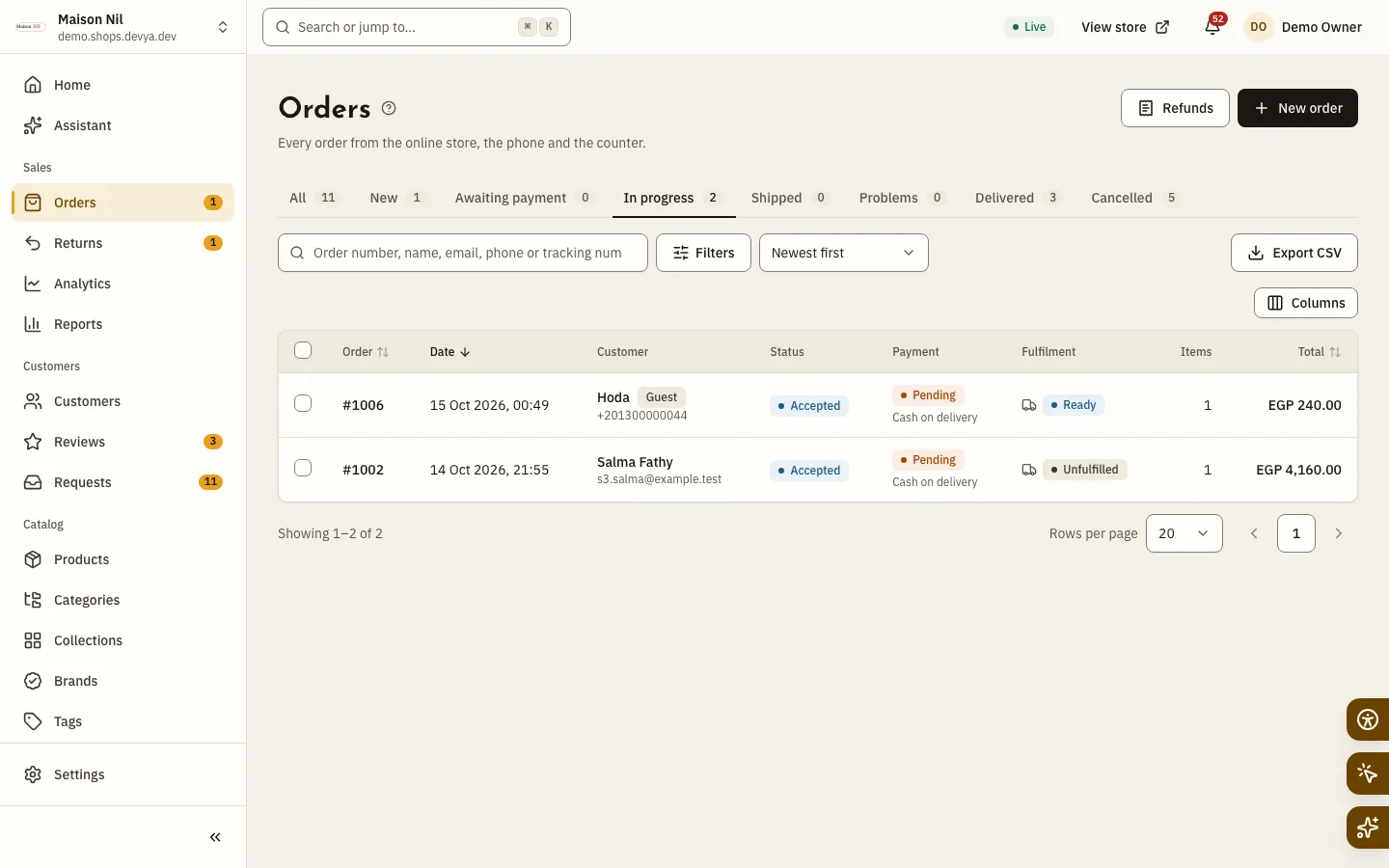
Fig. 1 —An accepted order stays in “In progress” until it ships. Step 2: Get it ready to ship
Click Start preparing if you like, then Ready to ship. In the Book a shipment window choose Manual as the Carrier, and enter the Tracking number, Courier name and Tracking link if you have them. If your store uses Bosta, the button reads Book courier and you print the label with Print label.
Step 3: Hand it to the courier
Click Handed to courier and the order moves to the Shipped tab. With Bosta the courier updates the status itself, and you can click Refresh from courier.
Step 4: Record the delivery
When the parcel arrives, click Mark delivered and the order becomes Completed on its own.
Step 5: Or hand it over at the branch
On a pickup order, click Ready for pickup, then Picked up by customer when they collect it.
A restaurant order: delivery or pickup
Step 1: Accept it with a preparation time
Click Accept order and change the Preparation time (minutes) if you need to, from
1to240. The order page then shows Ready by with the expected time.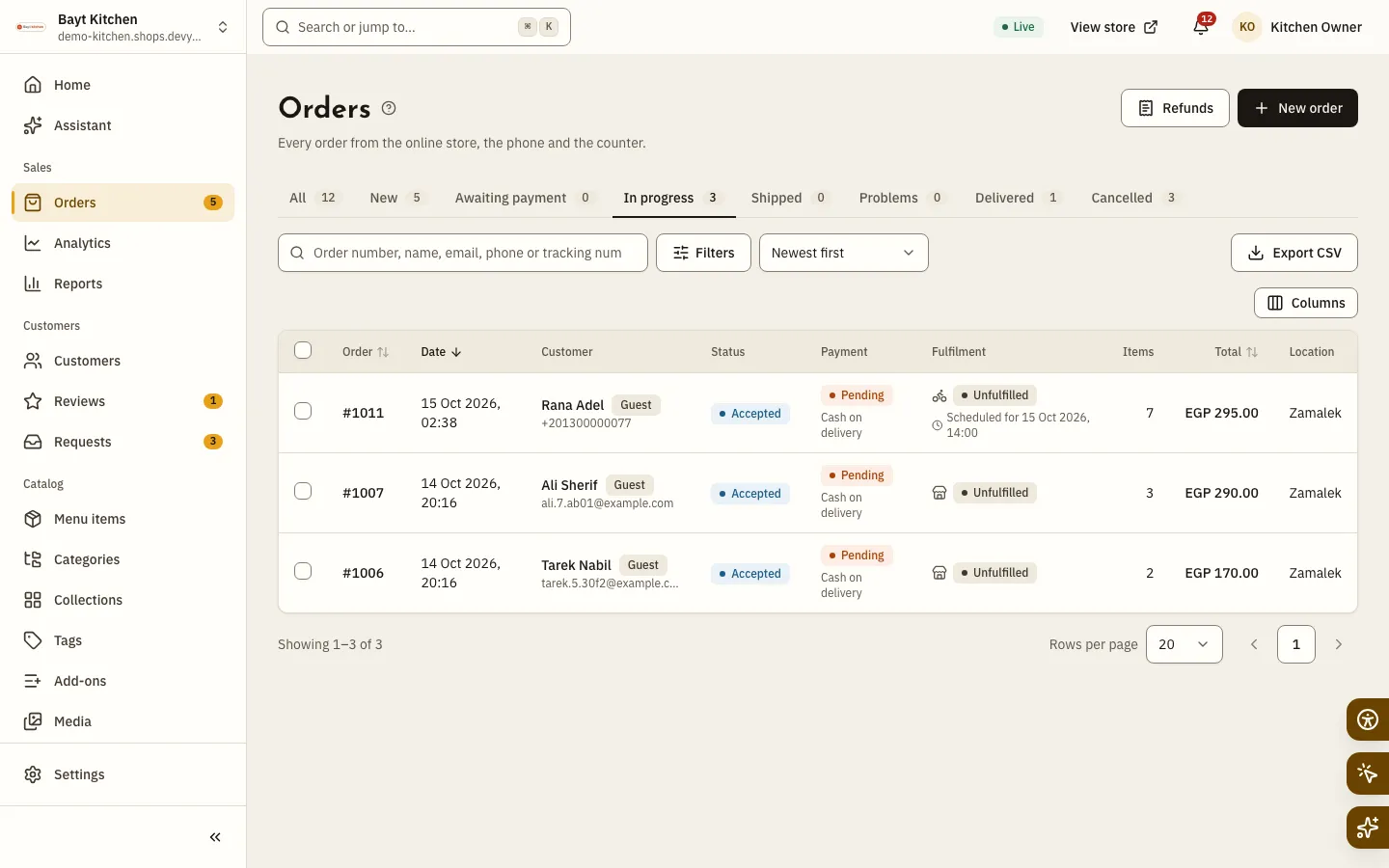
Fig. 2 —The kitchen’s accepted orders in one place until they leave. Step 2: Prepare it
Click Start preparing, then Ready for delivery with the Driver name and Driver phone if you like, or Ready for pickup.
Step 3: Hand it over
For delivery click Out for delivery, then Mark delivered; for pickup click Picked up by customer.
Payments and deliveries that go wrong
- Bank transfer: when the money arrives, click Mark as paid and enter the Amount received (the full balance due), the Bank reference and Received at. The order shows the Transfer proof if the customer uploaded one.
- Cash on delivery: Mark delivered or Picked up by customer records the cash payment on its own.
- Failed delivery: click Delivery failed and fill in What happened?, then choose Try delivery again, Return to sender for shipments, or Received back at store when the parcel comes back. Choose Put the items back in stock or write a note, and the order is cancelled.
Cancel or reject an order
Step 1: Choose the action
Click Reject order if it is New, or Cancel order once it is accepted. You may find it under More actions.
Step 2: Choose the reason
Under Reason, pick Customer request, Out of stock, Suspected fraud, Store unavailable or Payment failed, or Other with a required explanation.
Step 3: Pay back what was paid, then confirm
If the customer already paid, choose the Refund method, and turn on Already paid back if you returned it by hand. Then confirm, or click Keep order to back out. Reserved stock is released and the coupon can be used again.
An order can be cancelled until it leaves for shipping or delivery: while Awaiting payment or New, or Accepted with fulfilment no further than Ready. After that, use Delivery failed or returns.
Refunds and returns
To pay money back without cancelling, click Refund. Enter the Amount up to the limit shown and choose the Refund method: Original payment for orders paid online, or Cash, Bank transfer or Manual, then the Reason: Goodwill, Price adjustment or Other.
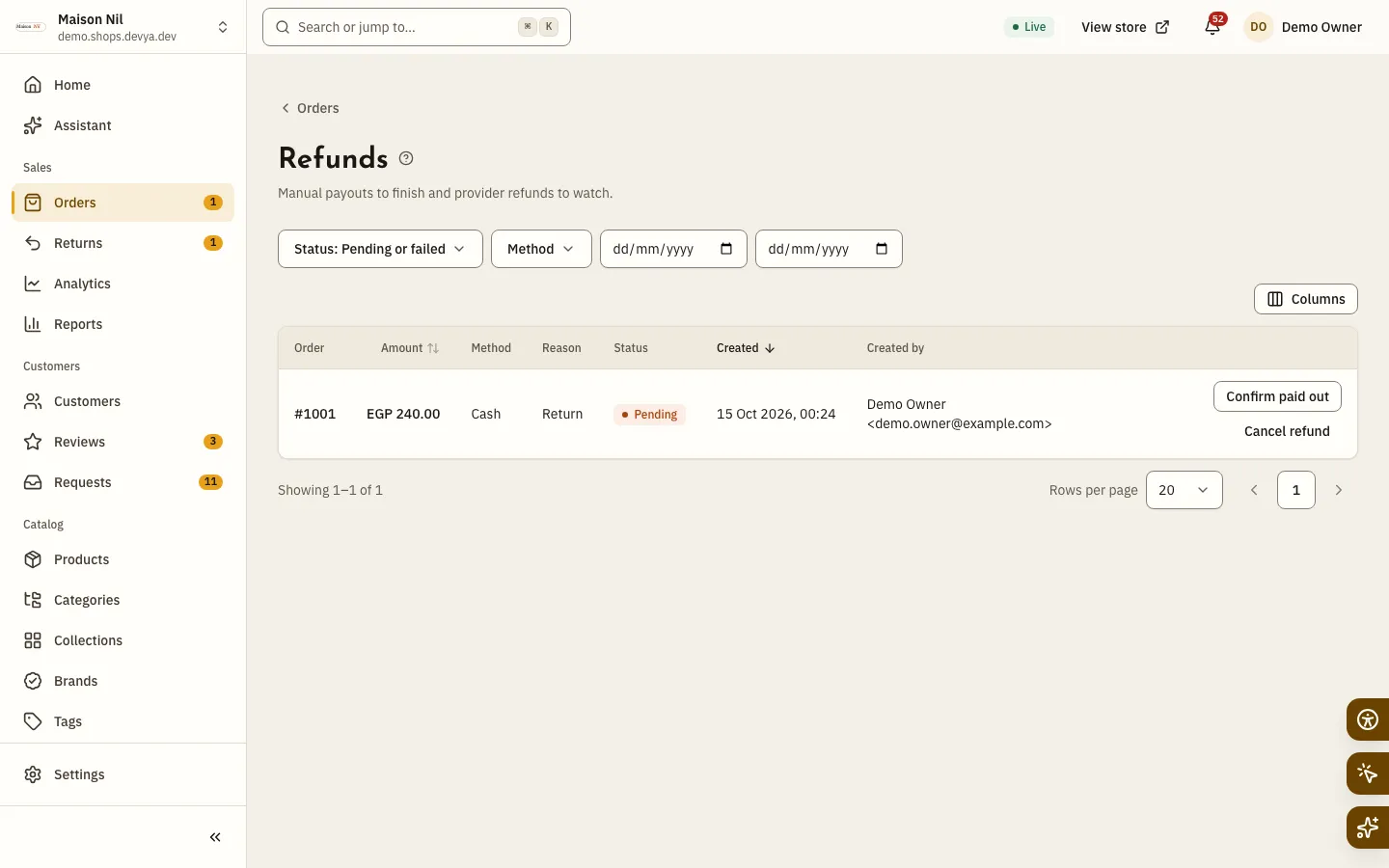
A manual refund you have not paid out yet stays pending. Click Refunds at the top of the orders list: the page shows Pending or failed by default, and from there you click Confirm paid out or Cancel refund, or Retry for a refund that failed at the payment provider.
Returns are for completed orders: click Start a return on the order page, and follow returns in Sales › Returns. This works while Accept return requests is on in Settings › Reviews & returns; it is on by default for shops and off for restaurants.
Why don’t I see the next-step button?
Buttons follow the order’s stage and your permissions, and they go away while the order is with Moving POS or the back office is read-only.
Can I change an order’s items or prices after it is placed?
No. Cancel the order, refund part of it, or create a new order. You can Edit address until fulfilment reaches Ready, and the order is not re-priced.
Can a customer cancel their own order?
Yes, from their order page, while it is Awaiting payment or New and has not been sent to Moving POS.