AI assistantChecked against the product on
Ask the assistant about your store
Ask the assistant, in your own words, about your sales, orders, products, customers and stock — from its page or from any page of the dashboard — and see who can use it and its limits.
On this page
Before you start
- The Talk to the assistant permission.
The assistant answers questions about your store in your own words: how sales went this week, which orders are waiting for you, what you should restock. It looks through your store’s data, then answers in the language you asked in.
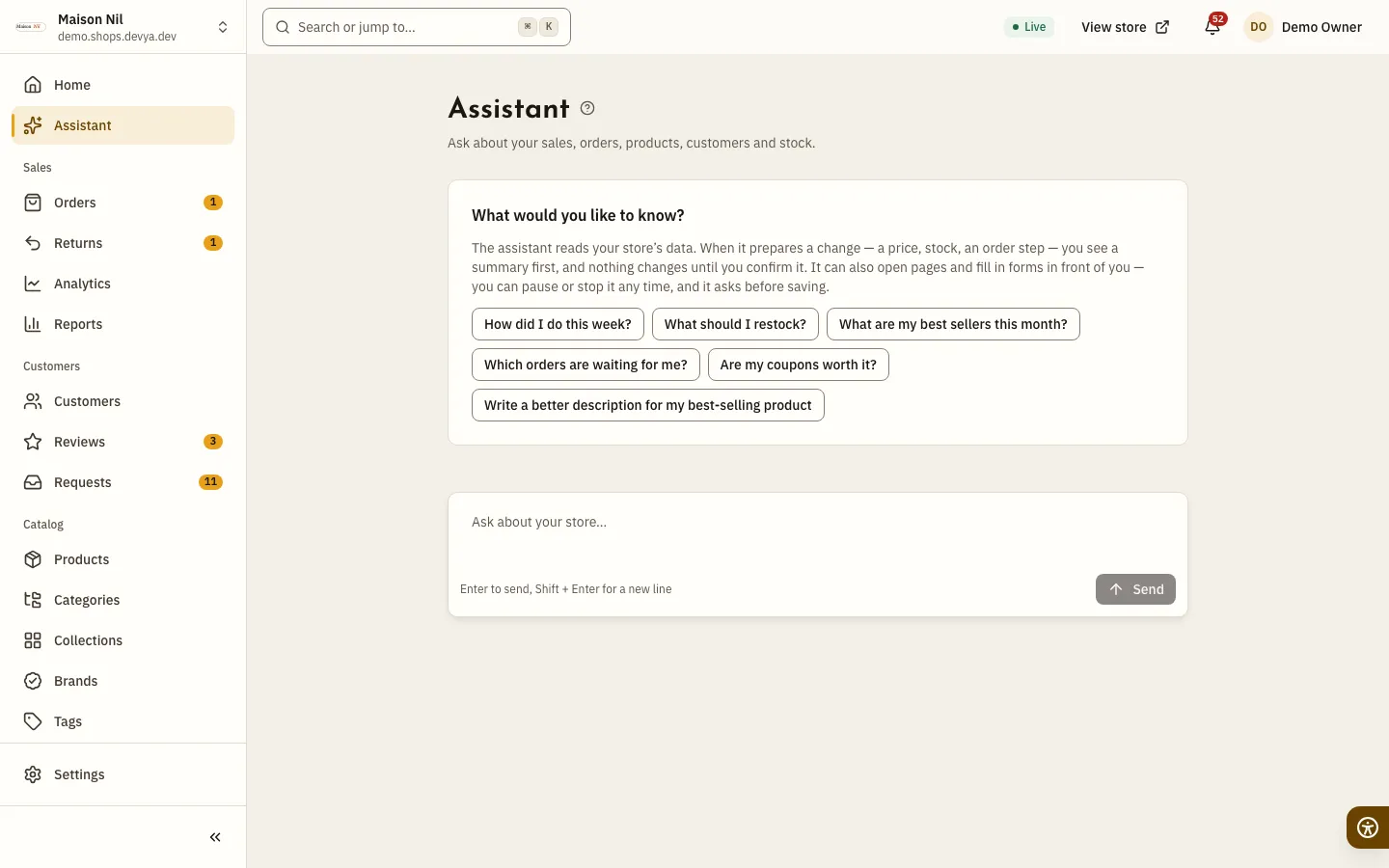
Where to find it
- In the sidebar: Assistant at the top, right after Home. It opens the conversation on a page of its own. On a phone, press Open navigation first.
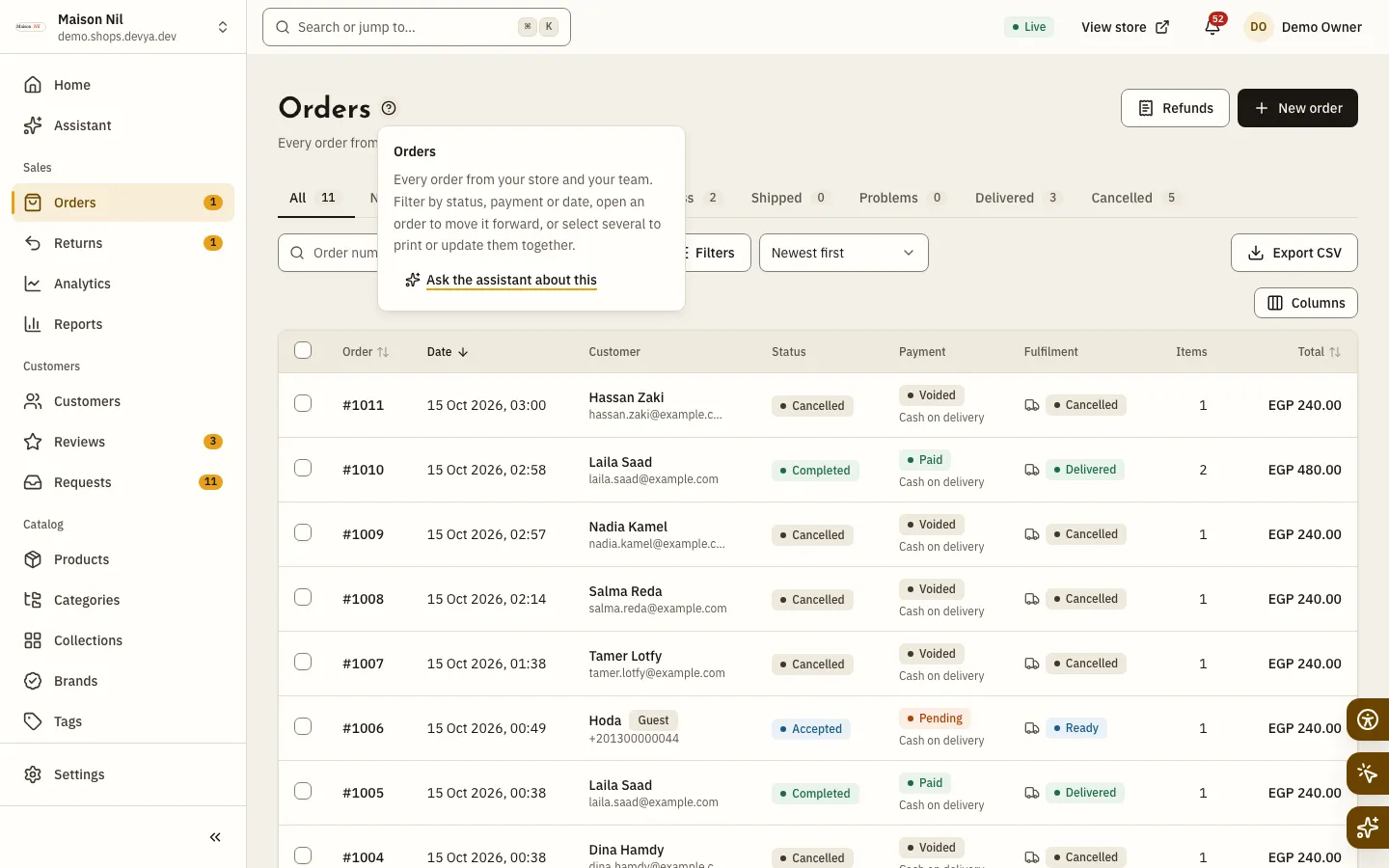
- On every page: the Assistant tab in the floating dock at the bottom right of the screen, under Controls and Do it with me.
- From the keyboard: press
⌘Jon a Mac orCtrl+Jelsewhere to open or close the assistant from any page. - From the (?) next to a page’s title: press Ask the assistant about this.
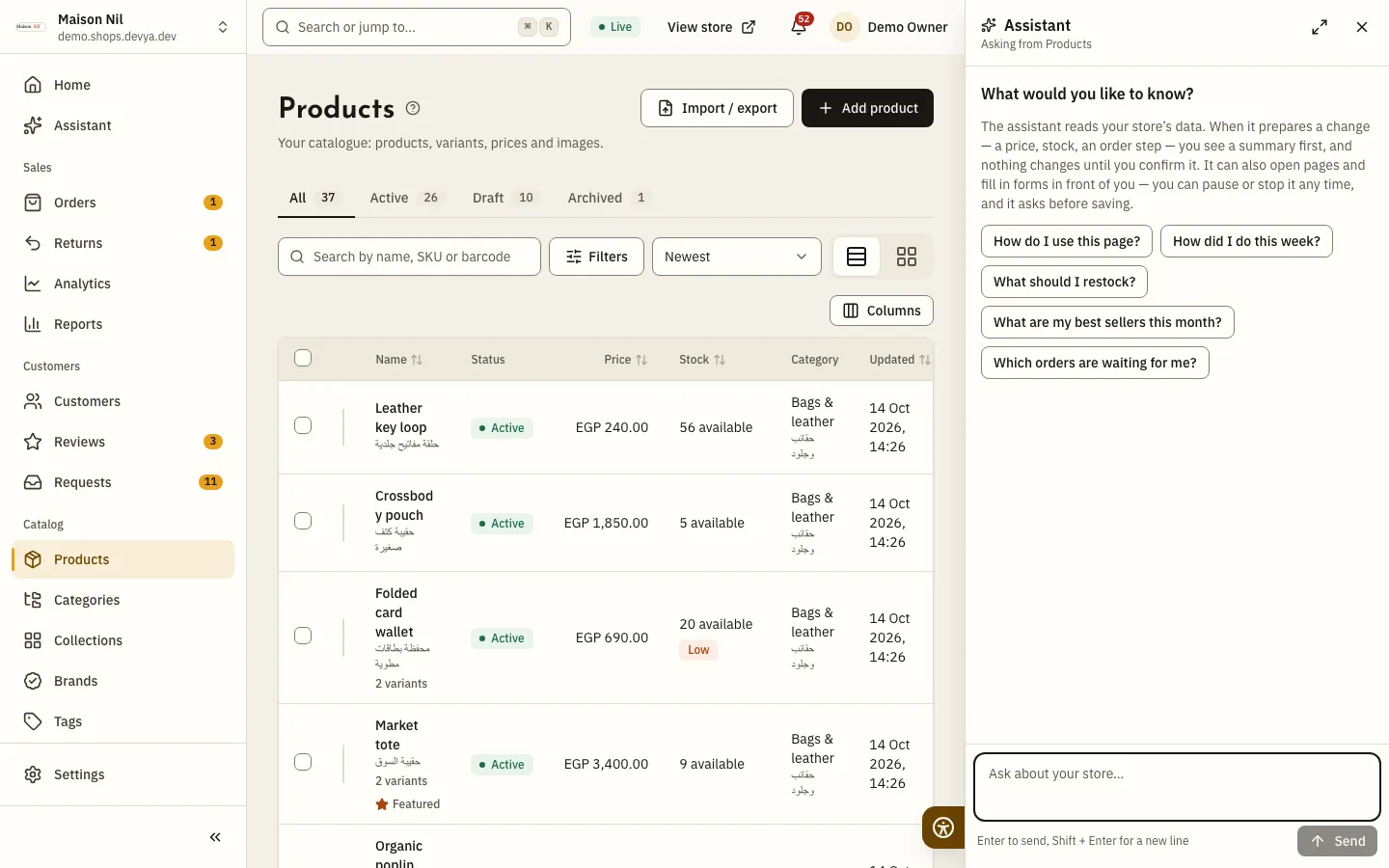
On a computer the assistant’s panel opens beside the page, on the right, so the page stays in view and keeps working. On a phone it opens from the bottom of the screen. Close it with Close the assistant or Esc, or open it on a full page with Open the assistant on its own page.
Ask your question
Step 1: Type your question
Type in Ask about your store…, then press
Enteror Send; useShift + Enterfor a new line. Or press a starter question such as How did I do this week?Step 2: Follow what it looks up
Looking into it… shows first, then what it looked through under What the assistant looked up — Sales figures or Orders, for example — then the answer. Press Stop to stop the answer.
Step 3: Start again
Press New chat to clear the conversation and start on something else.
| What it looks through | The permission it needs |
|---|---|
| Sales figures, This week, Best sellers and Coupons and promotions | View dashboard & reports |
| Orders and Order details | View orders |
| Products and Product details | View catalogue |
| Stock and sales pace and Stock levels | View stock |
| Top customers, Customers and Customer details | View customers |
| Coupons and Promotions | View coupons |
| Store settings | View store settings |
| Back-office guide: how to use any page | No permission needed |
It knows the page you are on
Every question carries the page you ask from and the record open on it, such as an order or a product, so the top of the panel shows Asking from and the page’s name. On a product, order, customer, coupon or promotion page the starter questions begin with it — Summarise this order or How much of this product is left? — and every page offers How do I use this page?
And the conversation follows you: it is one conversation for the store in this browser tab. It stays when you move between pages or reload, and ends when you close the tab. Each store has its own.
Help beside every page (?)
Next to every page title, and next to some sections and fields, there is a (?). Press it to read a short explanation of what is in front of you. When the assistant is available to you, the explanation ends with Ask the assistant about this: it opens the assistant with a ready question about the topic in its box and About: with the topic’s name above it. Send it as it is or edit it first.
Who can use it
The assistant needs the Talk to the assistant permission. The store’s Owner always has it, and the Admin, Manager and Staff roles have it by default. Take it away or give it from roles and permissions. Without it, Assistant is not in the sidebar or the floating dock.
Availability and limits
- The Moving team runs the assistant for every store. If it is not switched on for yours, the Assistant page shows The assistant is not switched on for this store yet. Ask the platform team to turn it on. and its tabs are not in the floating dock.
- If it cannot answer at some point, a message in the conversation says so. Try again a little later; the rest of the dashboard works as usual.
- Each member of your team can send up to
20messages a minute, and the whole store up to1,000a day. If you reach a limit, wait a little and try again.
Why did the answer end early?
If you see This took too many look-ups. Try a narrower question., name a period, a product or an order. If you see The answer was cut short. Ask it to continue., ask it to continue.
Does the assistant change anything in my store on its own?
No. It prepares the change and shows it to you, and nothing is saved until you confirm it. The details are in Let the assistant make changes.
Where does the conversation go when I close the browser?
The conversation lives only in this browser tab and is not saved to your account, so it ends when you close the tab. Start a new one whenever you like.