AI assistantChecked against the product on
Let the assistant make changes you approve
The assistant prepares changes to products, stock, orders, customers, coupons and settings, or does the work with you on the page itself. Nothing is saved until you confirm it.
On this page
Before you start
- The Talk to the assistant permission, and the permission each change needs when you make it yourself.
The assistant can work for you in two ways: it prepares a change that you confirm, or it works on the page in front of you with Do it with me. Either way, nothing is saved until you agree.
Changes it prepares for you
Ask for what you want in your own words, such as “Turn off coupon SUMMER”. The assistant replies with a Proposed change card: the kind of change, a link to the record, each value before and after, and a Waiting for you badge.
| The change | The permission it needs |
|---|---|
| Publish a product, move it back to draft, archive it or restore it | Manage products |
| Change the price of one of the product’s variants, with its Compare-at price if you like | Manage products |
| Write a draft description of a product in Arabic and English | Manage products |
| Change the stock of one variant at one location: add stock you received, remove damaged or lost units, or set the counted quantity | Adjust stock |
| Accept a new order | Process orders |
| Add a note to an order that only your team sees | Process orders |
| Cancel an order that has not been paid | Cancel or reject orders |
| Add tags to a customer or remove them | Manage customers |
| Create a coupon: a percentage, a fixed amount or free shipping, with a minimum order, dates and usage limits if you like | Manage coupons |
| Turn a coupon on or off | Manage coupons |
| Publish a promotion or pause it | Manage coupons |
| Change the checkout, inventory or reviews-and-returns settings, such as Accept orders automatically or Low-stock level | Manage checkout, tax & stock rules |
Step 1: Check the card
Make sure of the values before and after. Press the link on the card to open the record itself if you want to.
Step 2: Press Confirm
Press Confirm, and a dialog asks one last time: It is saved as soon as you confirm, just as if you made the change on its page. Confirm there; Change saved appears and the card’s badge turns to Done.
Step 3: Or cancel it
Press Cancel and nothing changes; the badge turns to Cancelled. The assistant learns what you decided with your next message.
A description draft comes as a Draft description card marked Not saved, with the English and Arabic text. Press Apply to product and confirm to replace the current description, or Discard to leave it. If someone edited the product after the draft was written, nothing changes and you are told.
Do it with me
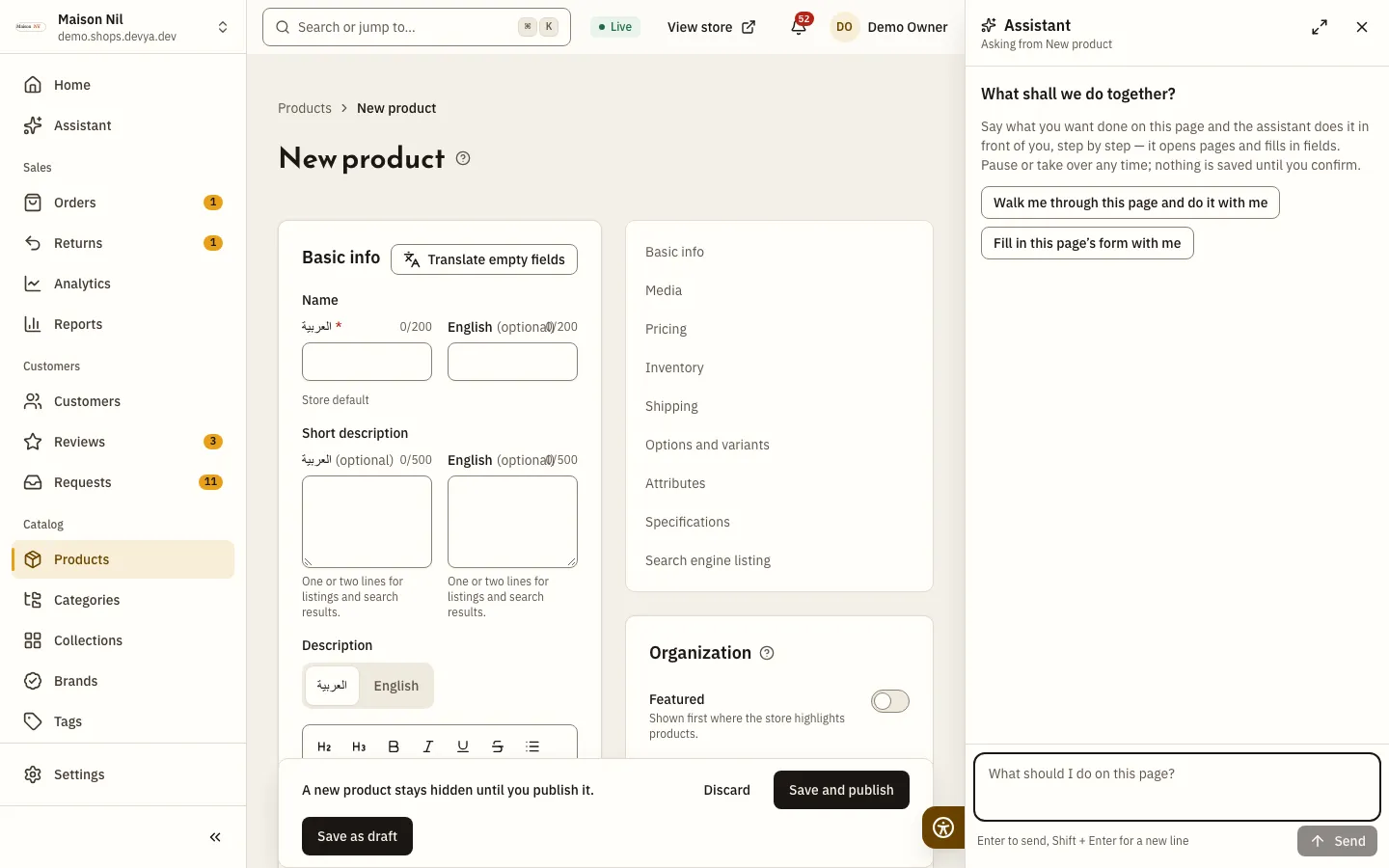
The Do it with me tab in the floating dock opens the assistant ready to work on the page you are on: it opens pages, types into fields, picks from lists and presses buttons in front of you, with a cursor named Assistant showing where it works. You can also ask for this from the usual assistant panel.
Step 1: Open the page
Open the page you want to work on, such as a new coupon, then press Do it with me. The panel shows What shall we do together?
Step 2: Say what you want
Type your request in What should I do on this page?, or press Walk me through this page and do it with me or Fill in this page’s form with me.
Step 3: Follow the steps
Each step shows in the panel with its status: Waiting, In progress, Waiting for you, Done, or Didn’t work with the reason.
Step 4: Approve before saving
Before every save, and before any step that may change something, the assistant stops and shows The assistant wants to: with the step and why it asks — This saves the form. or This makes it live in your store., for example — and what it has filled in so far. Choose Confirm, Skip this step or Stop.
You stay in control
- Pause holds it after the current step, and Resume carries on from there.
- Clicking or typing on the page pauses it, and so does
Esc; Paused — you’re in control appears. - Take over or Stop ends the work, and the remaining steps are not done.
- On a phone the panel shrinks to a bar with the current step, Pause and Stop so the page shows, and opens again when it needs your approval.
Auto mode
Turn on Auto mode — run the plan without asking at each step under the question box, and the assistant works through your request on its own; the panel’s title shows Auto while it is on. Your choice is kept for you on this device, and it is off until you turn it on. It cannot be switched while the assistant is working.
- It first shows The plan: a few short lines of what it is about to do, under The assistant does this on its own, in front of you:. There is nothing to approve; the work starts right away.
- It then types, picks, saves and opens pages without stopping at each step. Every step still shows in the panel, and Pause, Take over and Stop work as usual.
- It still stops and asks before anything that deletes, refunds or can’t be undone, touches money such as prices, coupons and promotions, goes live or out to people, or changes many records. It also asks at switches, at a save inside a dialog, and at a button it cannot place.
- When it finishes, What the assistant did shows how many steps were done and how many were skipped or stopped, with a link to each page it saved on.
What the assistant never does
- It never saves a change without your approval, unless you turn on Auto mode; even then it asks before every step that deletes, touches money, goes live or changes many records.
- It never goes beyond your permissions: every look-up and every change needs the permission you would need, and it does not open a page you cannot open.
- It never leaves the dashboard: no outside links and no new tabs.
- It never uploads files, and never reads or fills in passwords, secret keys or card details; you handle those yourself.
- It never leaves a page that has unsaved changes.
- It never prepares the cancellation of a paid order: cancel it from the order’s page, where you choose how to refund.
Can the assistant undo a change?
It has no undo button. Ask it for the opposite change and confirm it, or edit the record from its page. When a change cannot be undone, the confirmation dialog warns you before it is saved.
What if someone edits the record after the assistant prepared the change?
Your confirmation is refused and nothing changes; an error appears and the card stays waiting for you. Ask the assistant to prepare the change again.
Why did a step in “Do it with me” not work?
The reason shows next to it: Not on this page when it did not find the field, Not allowed when the step is outside your permissions or something it never touches, and You said no when you chose to skip it.