Products and categoriesChecked against the product on
Organise products with categories, collections and tags
Categories are a tree that puts every product in its place, collections are products you hand-pick for a season or a campaign, and tags are short labels that group products from any category.
On this page
Before you start
- The Manage categories, attributes, brands & tags permission for categories and tags.
- The Manage collections permission for collections.
Every product has one required category, and can belong to many collections and tags. You find all three in the Catalog group of the sidebar.
| Tool | What it is | Example |
|---|---|---|
| Categories | A tree up to six levels deep, shown in the store’s menu and filters. | Clothing › Shirts |
| Collections | Products you hand-pick and order, with an optional visibility window. | Summer picks |
| Tags | Coloured labels that group products across categories. | Gift idea |
Categories
Step 1: Open Categories
In the sidebar open Catalog › Categories.
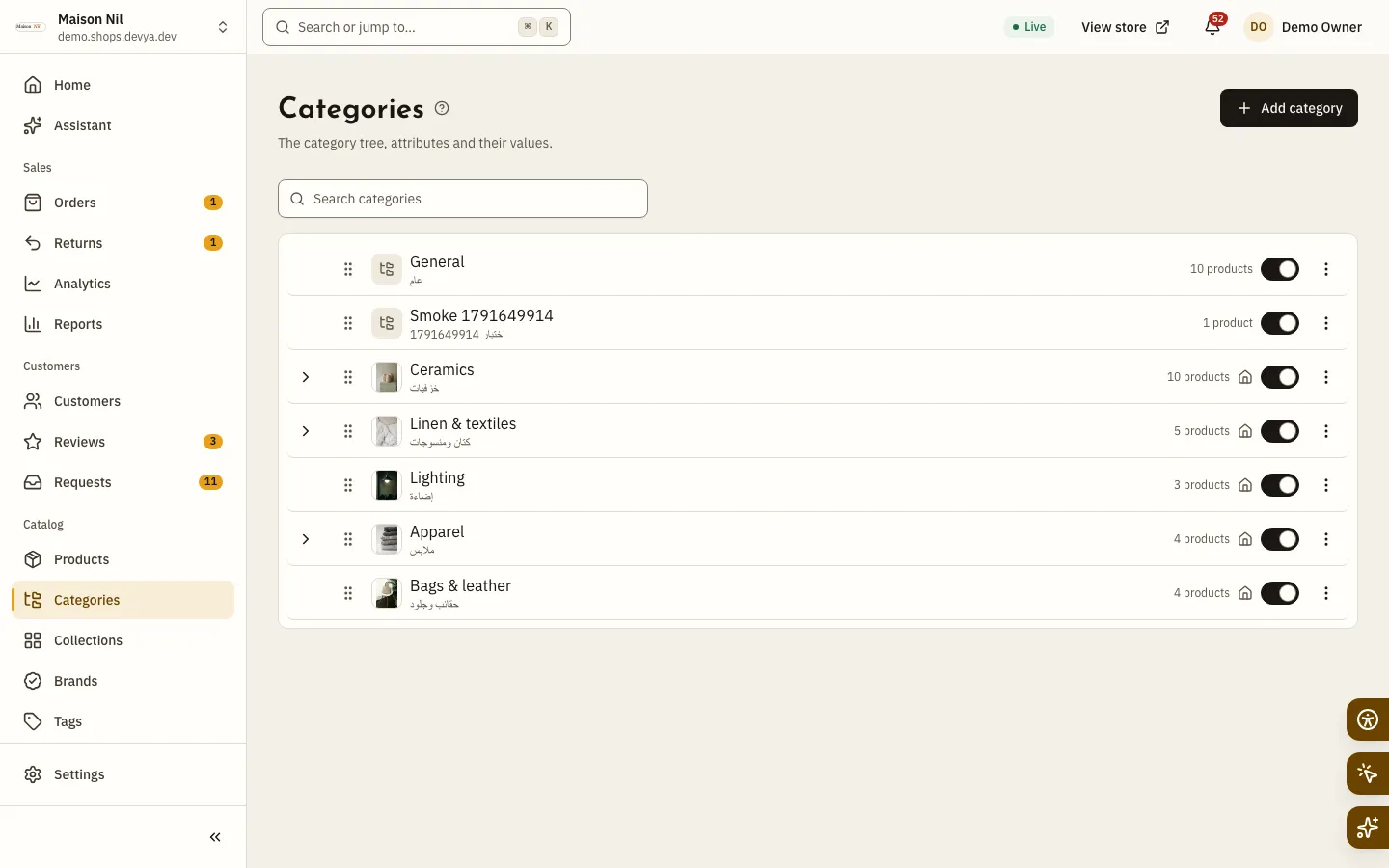
Fig. 1 —Drag categories to order them, and use “Move to…” to put one under another. Step 2: Add a category
Select Add category, or Add subcategory under an existing one.
Step 3: Fill in the details
Enter the Name, choose the Parent for a subcategory, and add the Image. Keep Show in the store menu on to list the category in the header menu, then select Create category.
- Top-level categories need an image in shops; in restaurants the image is optional.
- An inactive category hides itself and everything under it on the store.
- The tree holds six levels and
2,000categories, and a store keeps at least one category. - Before you delete a category that holds products or subcategories, the delete dialog asks you to move them to another category with Move and delete.
- On a category’s page, the Attributes tab adds traits like size or material, with their values, through Add attribute; they show in the product editor, and the store’s filters use them when they are Filterable.
Collections
Step 1: Create a collection
In the sidebar open Catalog › Collections and select Add collection.
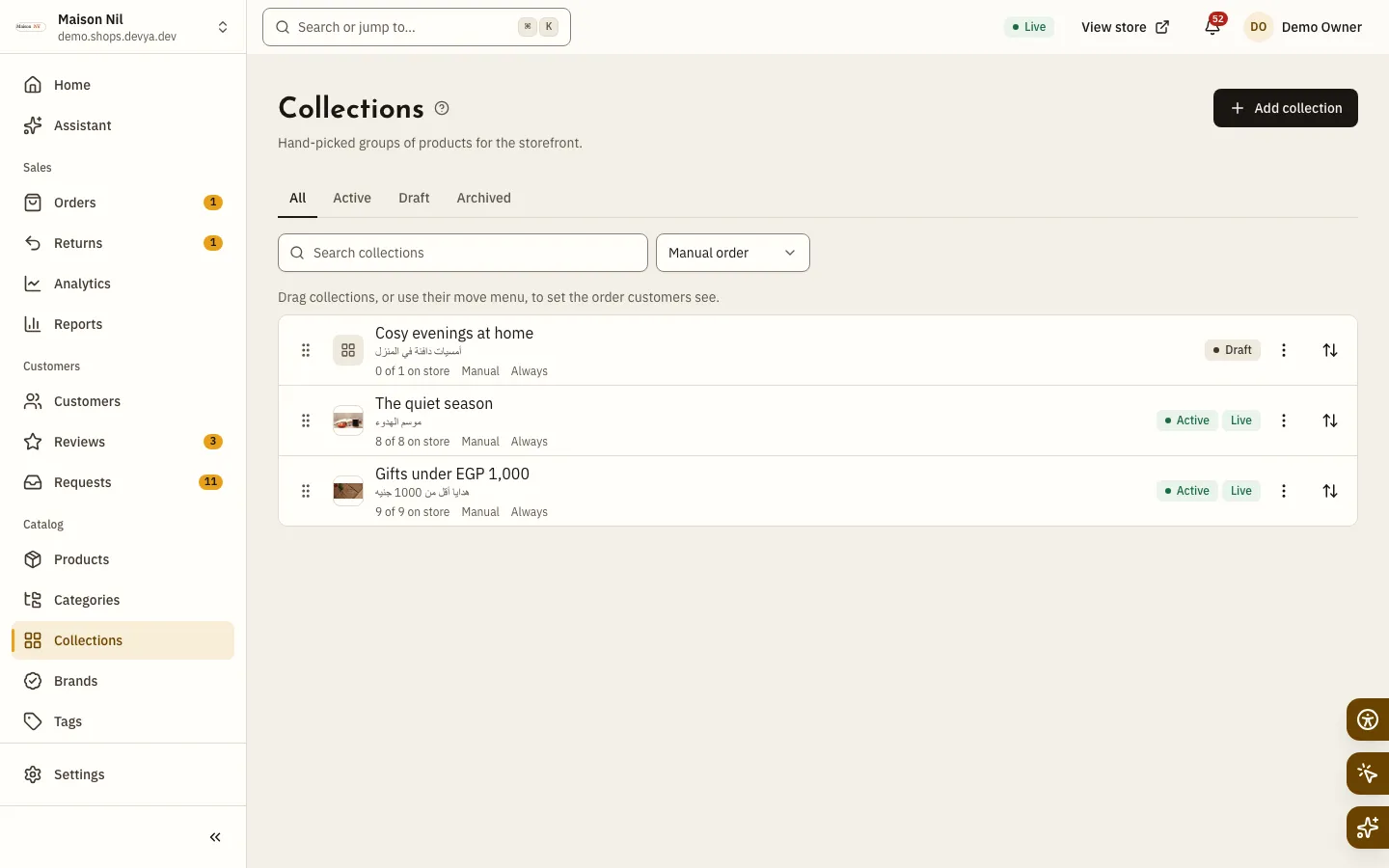
Fig. 2 —Drag collections to set the order customers see. Step 2: Fill in the details
Enter the Name, the Image if you want one, and choose the Product order: Manual, Newest, Best selling, or by price or name. Set a Visibility window with Starts and Ends in the store’s time zone, or leave both empty to show it always, then select Create collection.
Step 3: Add products and publish
The collection’s page opens. Select Add products and choose Where to add them: At the start or At the end. A collection starts as a draft, so select Publish to show it on the store.
Tags
Step 1: Add a tag
In the sidebar open Catalog › Tags and select Add tag. If your store has no tags yet, Suggested tags appear, each created in one click.
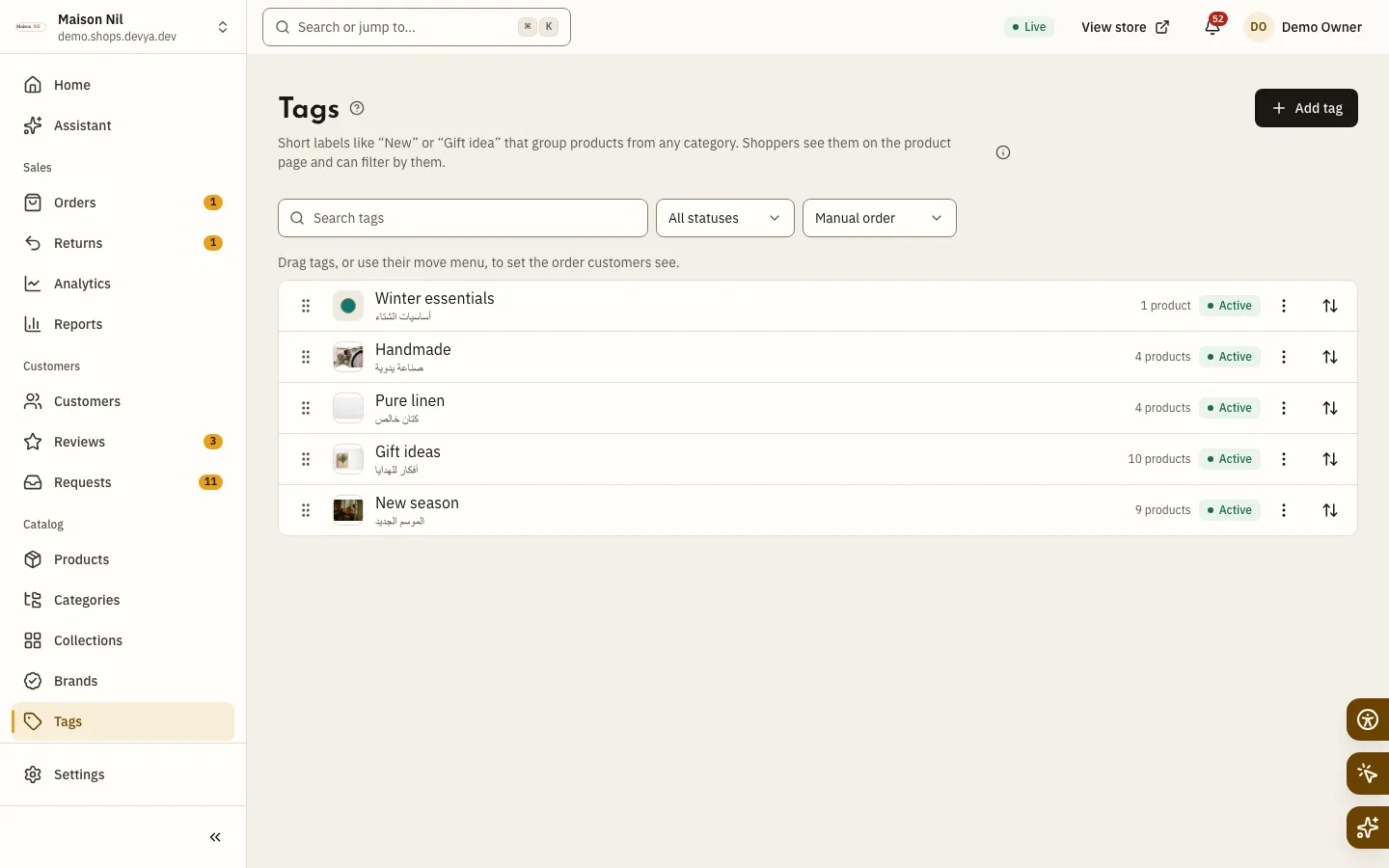
Fig. 3 —A tag’s colour is the colour of its chip and band on the store. Step 2: Choose its name and colour
Enter the Name, pick the Colour, and leave Active on, since inactive tags are hidden on the store. Then select Create tag.
Step 3: Attach it to products
Add products from the tag’s page with Add products, or from the Tags field in the product editor’s Organization card, where you can also type a new name to create the tag and add it.
Shoppers see tags on the product page, each tag opens a page of all its products, and they can filter by tag. Coupons and promotions can also be limited to products with a given tag.
How deep can categories go?
Six levels, and up to 2,000 categories per store.
Can a collection fill itself?
No. You pick a collection’s products yourself, up to 5,000.
Why did a whole category’s products disappear from the store?
Most likely the category, or one above it, is turned off; an inactive category hides everything under it.