Getting startedChecked against the product on
Create your store
Create your account and your store together on the Moving Stores sign-up page, in two steps: your account details, then the store’s name, address, business type, what you make, country and plan. Then confirm your email address.
On this page
Before you start
- An email address you can open: you need it to confirm your account before the store’s first launch.
The Create your store page creates your account and your store in one form of two steps. When you submit it you go straight to the setup wizard, and your store stays hidden from customers behind a “Coming soon” page until you launch it.
Fill in the sign-up form
Step 1: Open the sign-up page
On
stores.movingsystems.techclick Start free. The progress bar at the top of the form shows Your account, then Your store. If you already have an account, click Sign in under the form.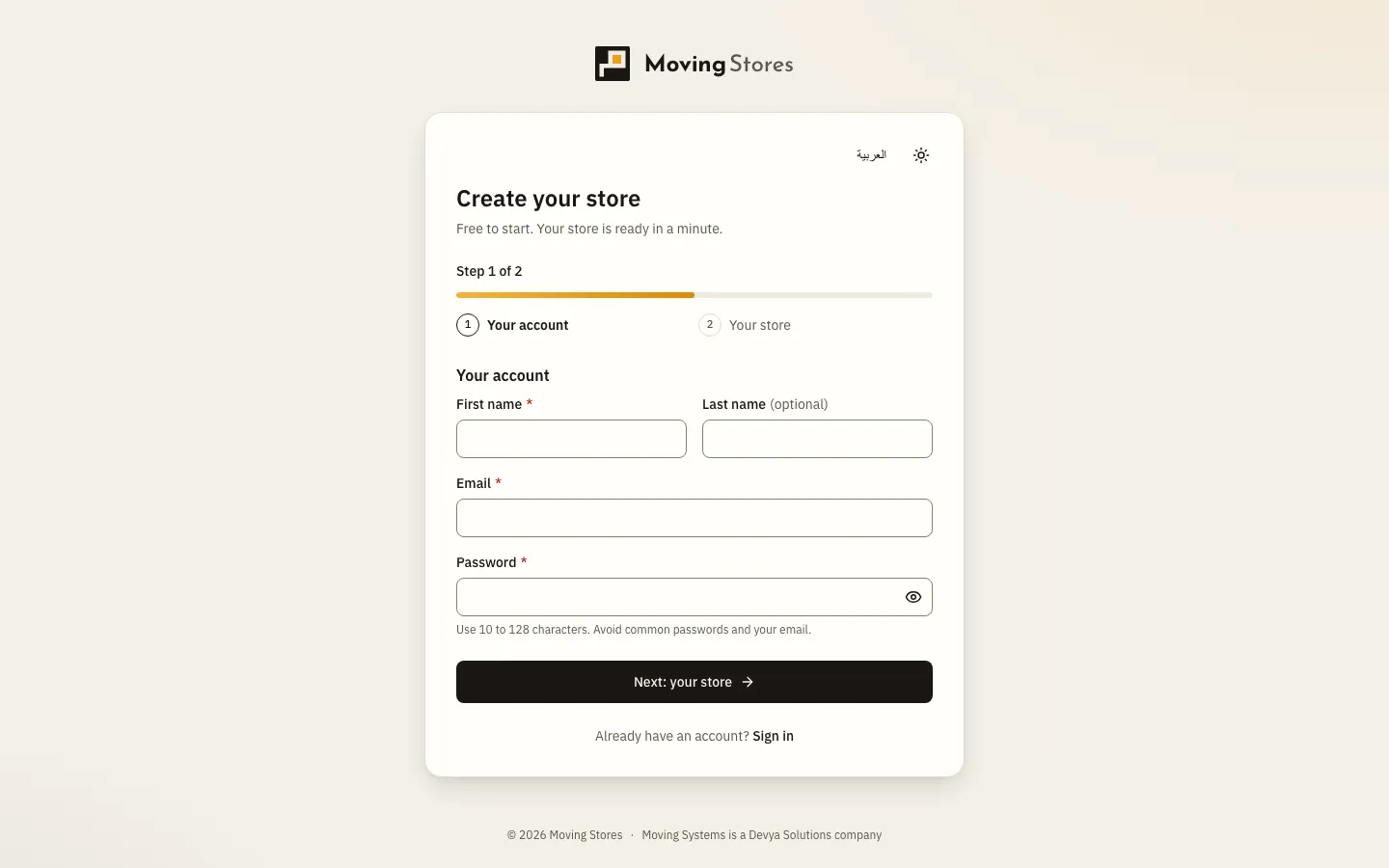
Fig. 1 —Step one: your account details. Step 2: Enter your account details
Type your First name, Last name (optional), Email and Password:
10to128characters, not a common password and not containing your email. Then click Next: your store. Back returns you without losing what you typed.Step 3: Name your store and pick its address
Under Your store, type the Store name and the Store address fills itself in. Edit it if you like and wait until it says the address is available. If the address is taken, the form suggests another one you can pick with the Use button.
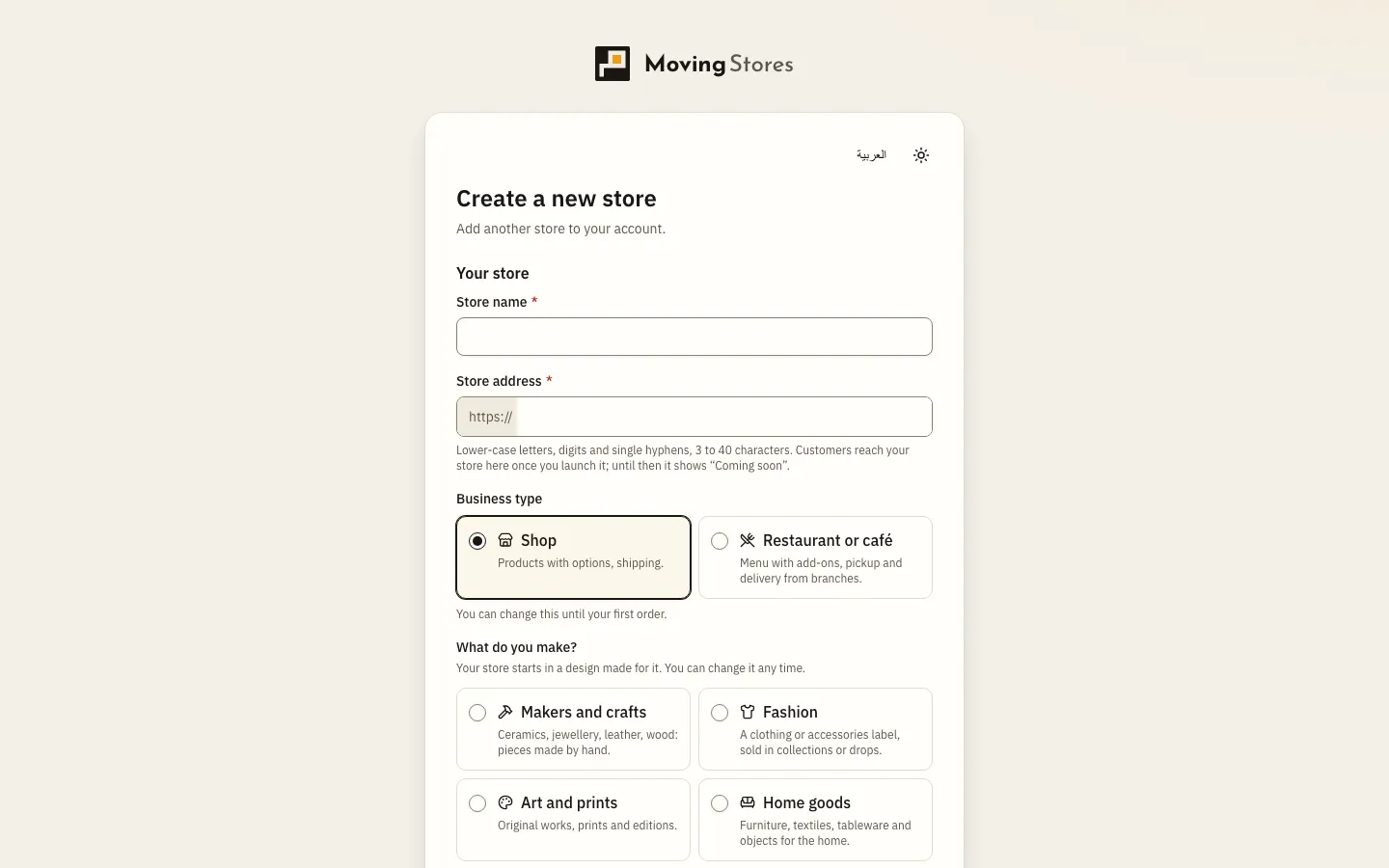
Fig. 2 —The same fields appear when you add another store to your account. Step 4: Choose the business type
Under Business type, choose Shop for products with options that you ship, or Restaurant or café for a menu with add-ons, picked up or delivered from branches. You can change it until your first order.
Step 5: For a shop, answer What do you make?
Choose Makers and crafts, Fashion, Art and prints, Home goods, Beauty, Electronics or Something else. The question is optional, and restaurants and cafés don’t see it.
Step 6: Set the country
Under Where is your business?, choose Egypt, Saudi Arabia or the UAE, or Another country and then yours. A line below shows the currency, time zone, first language and suggested VAT rate. Click Adjust to change the Currency, Time zone or Store language.
Step 7: Choose a plan
Pick a card under Plan; each card lists its limits and its free trial, if it has one. Then choose the Billing: Monthly or Yearly.
Step 8: Accept the terms and create the store
Tick the box to agree to the terms of service and privacy policy, then click Create my store. You land in the setup wizard.
What you make and your first design
Your answer to What do you make? picks the design your store starts in, the templates the wizard’s Design step suggests, and your store’s category in the Moving Stores directory, without listing it there. You can change the design any time.
Store address rules
The store address is your store’s link on the platform, such as your-store.shops.devya.dev. Customers reach it once you launch; until then it shows a “Coming soon” page.
3to40characters: lower-case letters, digits and single hyphens, starting and ending with a letter or digit.- If you type the store name in Arabic only, the address stays empty, so type one yourself in Latin letters.
- Some addresses are reserved for the platform, such as
www,admin,shopandstore, and show “This address is reserved.”.
What your new store starts with
- The store starts in Maintenance before its launch, so the dashboard shows a Coming soon badge and visitors see a “Coming soon” page.
- The store’s design follows your answer to What do you make?.
- One default location: Main warehouse for shops, Main branch for restaurants.
- Six published pages ready to edit: About us, Privacy policy, Terms of service, Return policy, Refund policy and Cancellation policy.
- Your email is the store’s contact email and also receives the order alerts.
- VAT is off until you turn it on.
Confirm your email address
Once the store is created we send a confirmation link to your email, valid for 48 hours. Open it and click Verify email. Confirmation is needed for three things: the store’s first launch, switching online payments to live, and creating an API key. To get a new link, click Resend email in the banner at the top of the dashboard, or Send the link again in the Before you launch list.
Add another store
In the store switcher at the top of the sidebar, choose Create a new store, fill in the store details, then click Create store. One account can own up to 5 stores and create up to 3 a day, signed in with email and password; stores can’t be added from a Moving POS sign-in.
I signed up with an email that already has an account. What now?
The form takes you back to the Your account step with a notice that the account exists. Click Sign in to add a store, then create the store from inside your account.
Can I change the business type after signing up?
Yes, until the first order, in Settings › Store › General. After the first order the business type, country and currency are locked.
I see “Signups are paused right now.” Why?
Self-serve sign-up is paused for now. Write to the email shown under the message and we will set your store up.