Moving POSChecked against the product on
Link your restaurant to Moving POS
Link your restaurant’s store to Moving POS with a pairing code: the menu, prices and branches come from the till, online orders reach it and their status comes back, and your team moves between the two back offices without signing in again.
On this page
Before you start
- Your store is a Restaurant or café in Egypt or Saudi Arabia. Shops do not see this section.
- The store’s currency and time zone are the same as your Moving POS restaurant’s, and prices include VAT (Settings › Taxes).
- You are the store’s Owner: only an owner connects and activates. After that, anyone with the Manage the POS connection permission looks after the settings.
- Your plan includes the link; otherwise the page shows Upgrade to use this.
- A Moving POS account that opens Integrations.
Once linked, your menu, prices and branches come from Moving POS, online orders land on the till and their status comes back to the store, and your team can open this back office from Moving POS.
Pair with a code from Moving POS
Step 1: Open the link page
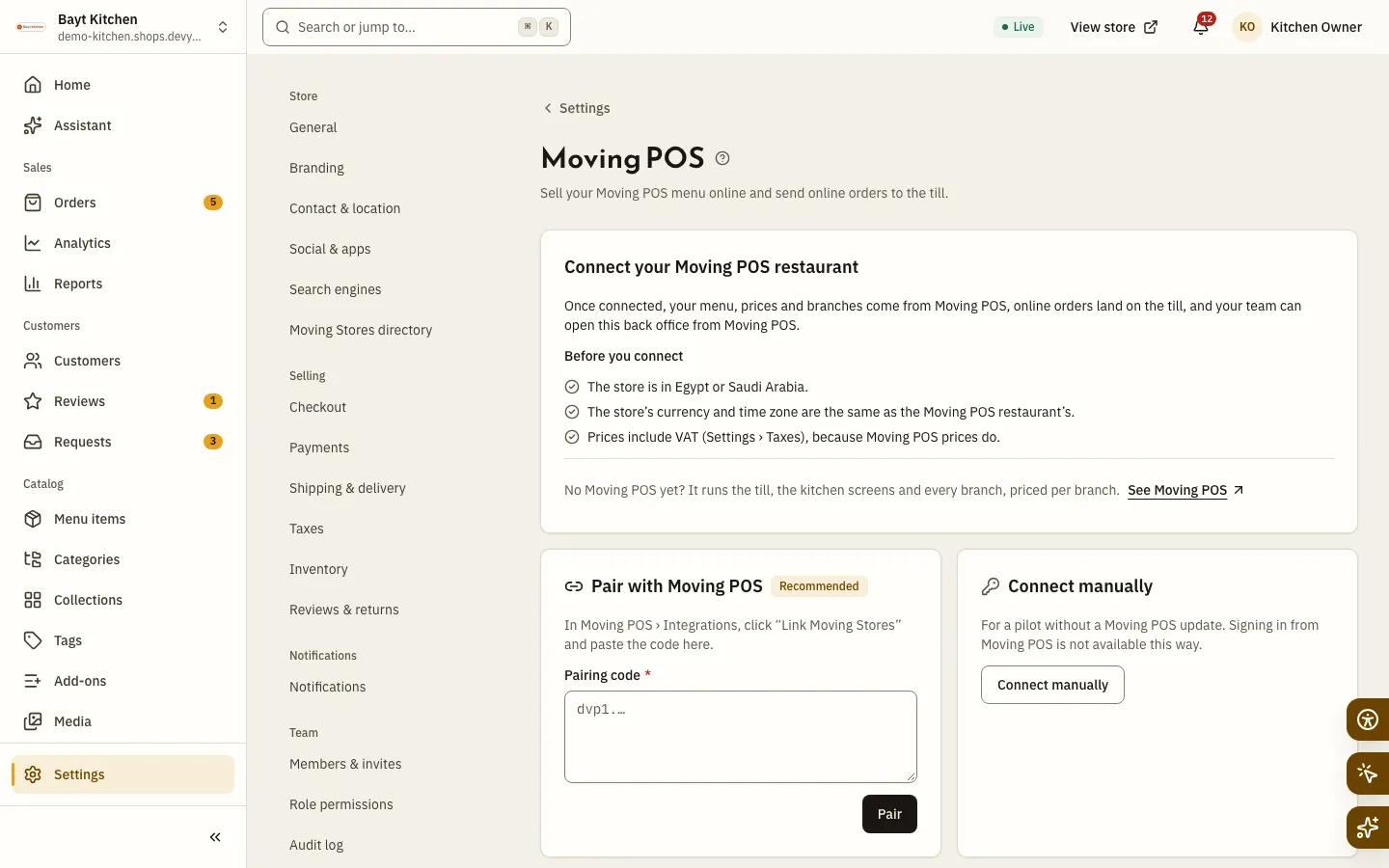
In the sidebar, open Settings, then Moving POS under Integrations. The Connect your Moving POS restaurant card appears, with the requirements under Before you connect.
Step 2: Create the pairing code in Moving POS
In Moving POS, open Integrations and click Link Moving Stores, then copy the code. The code works once, within
15minutes.Step 3: Paste the code and pair
In the Pair with Moving POS card, paste the code into Pairing code and click Pair. Paired with Moving POS appears, and pairing sets up the keys, status updates and sign-in from Moving POS for you.
Step 4: Check the connection
In Connection check, click Test connection and fix every Failed check before going live: that Moving POS answers, that the menu can be read, that the country, currency and time zone match, and more.
Step 5: Map the branches
Under Branches, each Moving POS branch becomes a location of your store. For each one, choose Create a new location or an existing location in Location here, turn on Sell online where you want it, then click Save branches. Map the store’s default location to exactly one branch.
Step 6: Import the menu and go live
In Import the menu and go live, click Import menu and activate. When The menu is in and the connection is live. appears, online orders start reaching the till.
What moves, and which way
| Data | Direction | What happens |
|---|---|---|
| Menu, prices and add-ons | From Moving POS to the store | Items carry the Managed by Moving POS badge; the name, category, variants, prices and add-ons are changed on the till, along with each branch’s price. |
| Branches and delivery zones | From Moving POS to the store | The branch’s name, address, phone and hours, and each delivery zone’s name and fee. |
| Online orders | From the store to Moving POS | Pickup and delivery orders at mapped branches, as soon as they are placed or once online payment succeeds, whether they come from the store or from New order. |
| Order status | From Moving POS to the store | The status moves with the till up to delivery, and the store emails the customer at each step. A cancellation on the till cancels the order in the store. |
| Customers | No sync | Customer lists do not move either way. With each order the till gets only what it needs to fulfil it: name, phone, address and notes. |
What stays yours here: descriptions, images, tags, collections and Sell online. An item that leaves the till’s menu is hidden from the store, not deleted. To hide an item from the store but keep it on the till, open it and click Stop selling online.
Checkout rules in a linked store
The till has to fulfil every order exactly as placed, so the Mode in the Orders card decides what checkout accepts:
| Mode | Payment methods | Coupons and discounts |
|---|---|---|
| Pilot — cash orders only; status by polling | Cash on delivery only | Not available |
| Keyed — priced and confirmed by Moving POS | Cash on delivery, or online payment if your store has it on | Available |
- No bank transfer, no scheduled orders, and no free delivery above an amount on the till’s zones.
- Every item in the cart has to come from the till’s menu.
- The customer’s phone has to be a valid number of the store’s country.
Keep an eye on the link
- Once live, the page shows Overview, Branches and Activity: the connection’s state, the order mode and what is waiting to send, then the log of syncs, orders sent and status updates.
- Menu sync: set Check every from
5to1440minutes, or click Sync now to pull changes at once. - An order that didn’t reach the till shows in the notifications: Not sent to Moving POS. In the Moving POS card on the order page, click Send again, or Entered on the till if your team typed it in by hand.
- Turning off Send online orders to Moving POS keeps orders in the store only, and your team follows them in the back office.
- Re-pair with a new code from Moving POS rotates every key.
Move between the store and Moving POS
A paired link works both ways. From Moving POS your team opens this back office without signing in again: Moving POS admins as Admin or Manager depending on their permissions there, and a branch manager as Manager of their own branch only. From here, open your account menu and, under Apps, choose Back office: the Moving POS back office opens in a new tab with your account there.
- The switch shows when the store is paired with a code, not connected manually.
- Your account has to be linked to a Moving POS account; it links the first time you open this back office from Moving POS.
- You need the Open Moving POS permission, and Moving POS still applies its own permissions after the switch.
Staff from Moving POS
Staff sync is optional and off by default on both sides. The Moving POS owner turns on staff sharing in Integrations › Online store there, then you turn on Keep staff in step with Moving POS here, in the Staff from Moving POS card (with the Manage staff & permissions permission). From then on, everyone who can open the store from Moving POS finds their seat here before their first sign-in, and their role and branch stay in step. The sync runs again every hour, or click Sync staff now.
Disconnect
Click Disconnect Moving POS, then confirm with Disconnect. The menu sync and order sending stop at once; items stay and become editable here. Orders waiting to be sent fail and your team is alerted, and orders still open on the till become manual, for your team to move on from here.
Why can’t I change an item’s name or price?
It comes from Moving POS: This field is managed by Moving POS. Change it there. Change it on the till, then click Sync now.
Why are there no kitchen buttons on an online order?
The till handles it once sent: Moving POS is handling this order. Change its kitchen and delivery status on the till. Its status comes back to the store by itself. The usual order steps are in Fulfil an order from accepted to delivered.
What happens if my plan no longer includes the link?
Online orders still go to the till, and you can follow them, send them again or disconnect. The menu sync, pairing and activation wait for an upgrade.