Shipping and deliveryChecked against the product on
Set up shipping zones and rates
In shop stores, shipping zones decide where you ship, and each zone’s rates decide what shipping costs, how long it takes and who delivers it. You can check any address to see the rates it gets.
On this page
Before you start
- A shop store; restaurants set delivery per branch instead, as in pickup and delivery.
- The Manage shipping & couriers permission; the store Owner and Admin have it.
In Settings › Shipping & delivery you build your shipping map: a zone for each group of cities, zones or districts, and in each zone one or more rates the customer chooses from at checkout. Store pickup, Bosta and the address checker are on the same page.
Add a shipping zone
Step 1: From the sidebar, open Settings › Shipping & delivery and click Add zone.
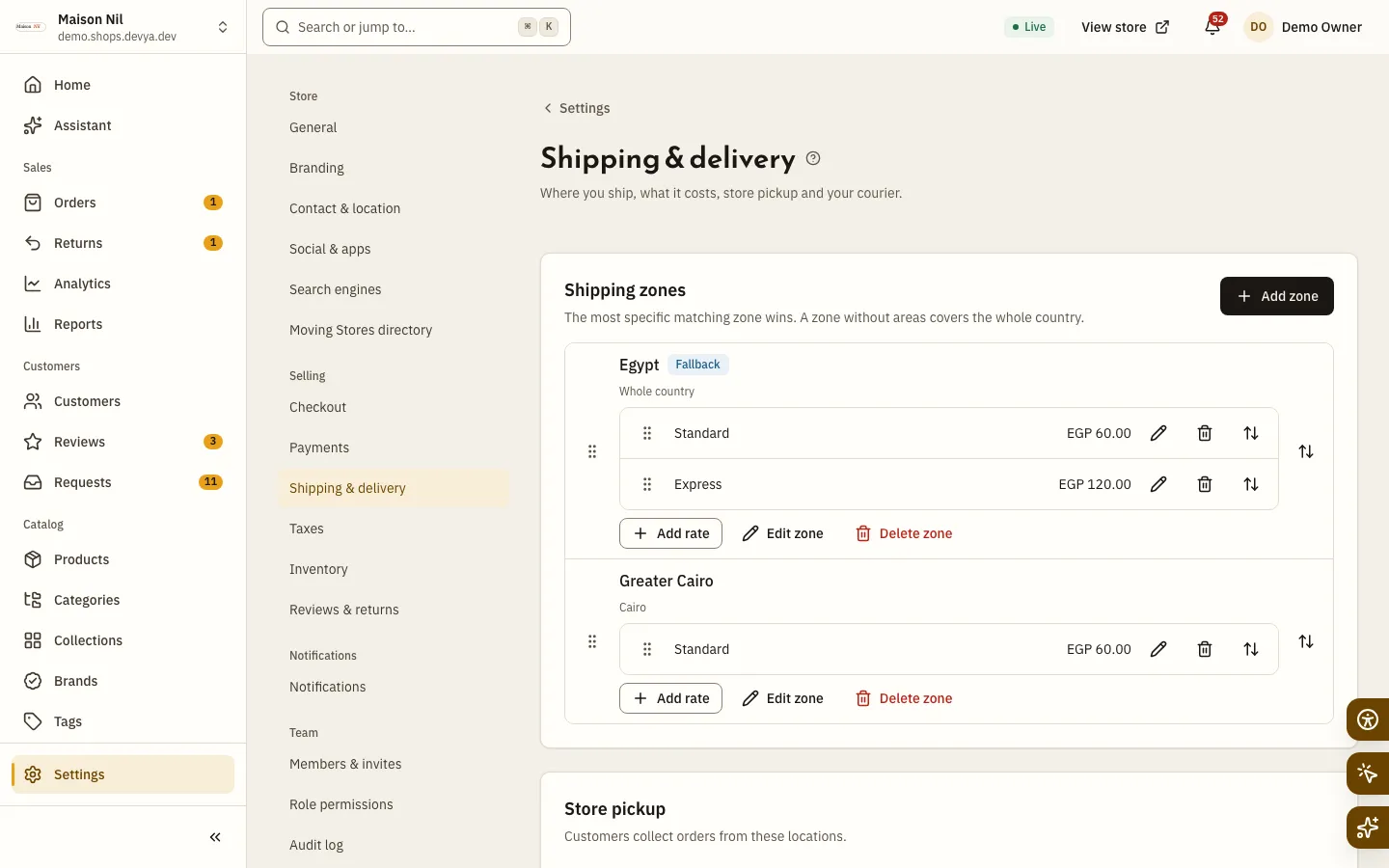
Fig. 1 —Each zone shows its areas and rates, and you can drag zones to reorder them. Step 2: Write the Zone name in Arabic and English.
A zone is always in your store’s country, which shows under the name.
Step 3: Click Add areas and search the cities, zones and districts.
Leave the areas empty and the zone covers the whole country.
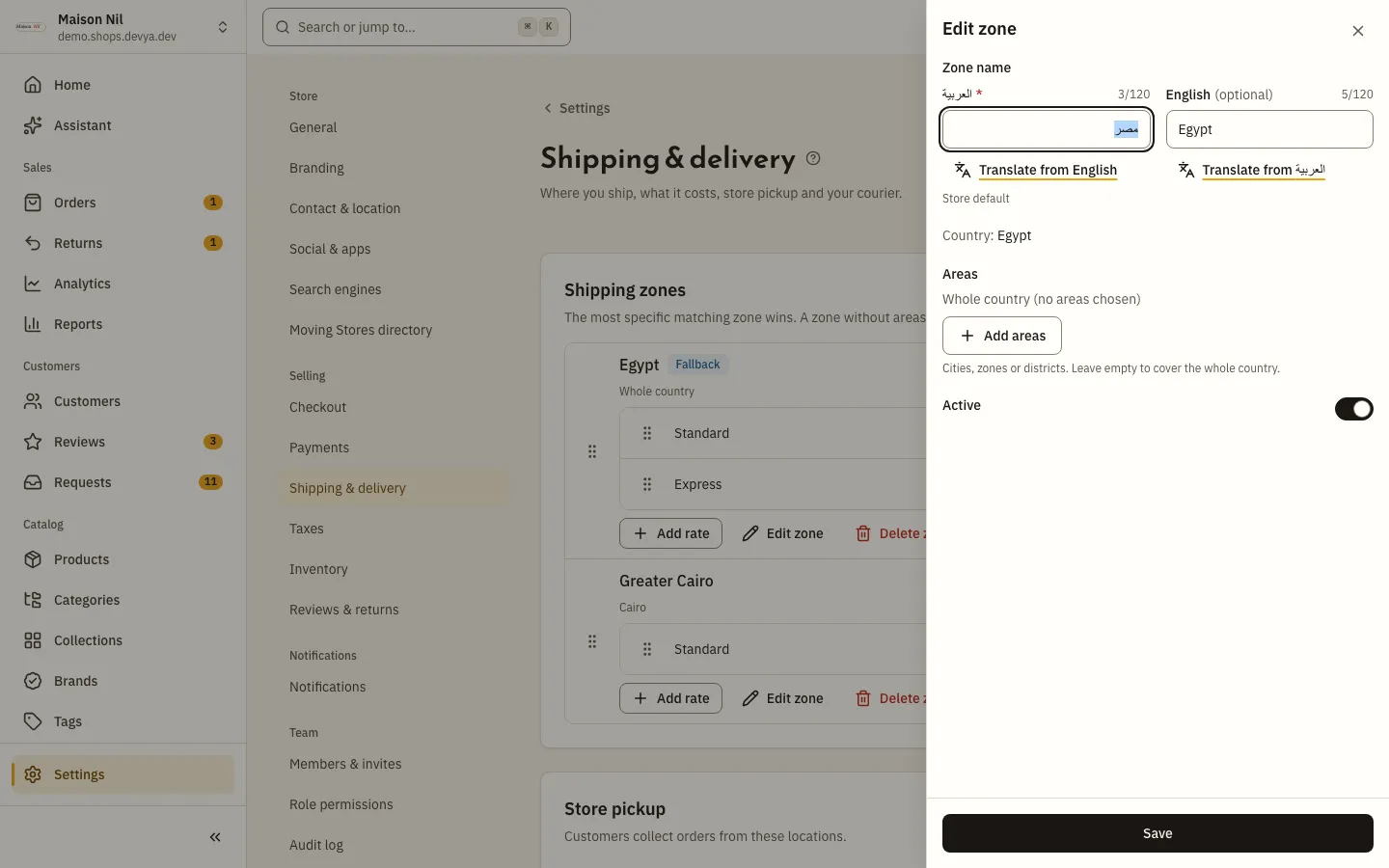
Fig. 2 —Pick cities, zones or districts, or leave it empty for the whole country. Step 4: Keep Active on, click Save, then give the zone at least one rate.
- The most specific matching zone wins: district, then zone, then city, then the zone that covers the whole country and carries the Fallback badge.
- When two zones match an address equally, the one higher in the list wins; drag the zones to reorder them.
- An inactive zone matches no address.
- A zone with no rates stops its customers from checking out: No rates yet: customers in this zone cannot check out.
Add a rate
Step 1: In the zone, click Add rate and write the Rate name.
Customers see it at checkout, for example “Standard”.
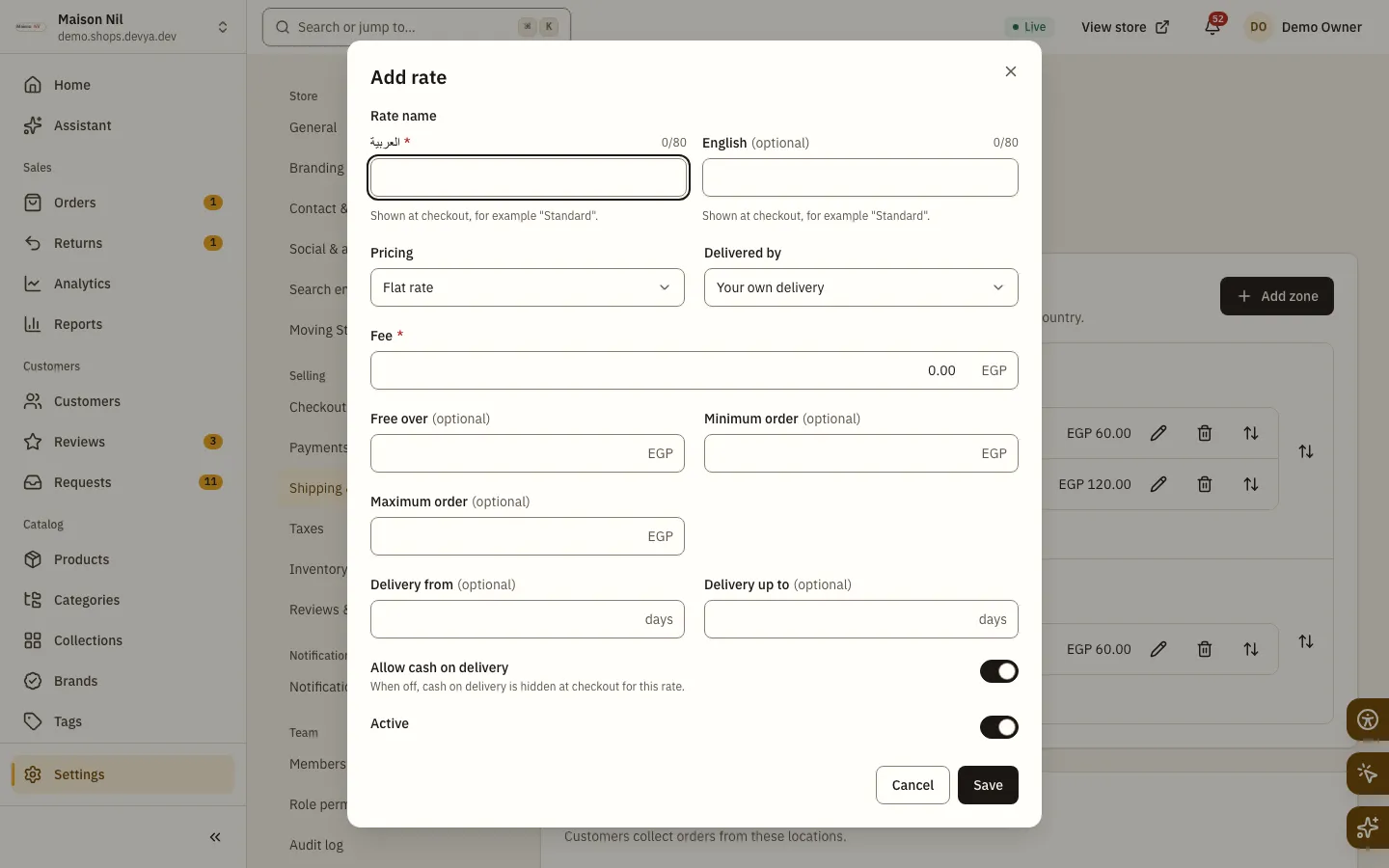
Fig. 3 —Each rate has its own fee, limits and delivery time. Step 2: Choose the Pricing: Flat rate or By weight.
For a flat rate, enter the Fee. By weight, the Base fee covers the order up to the Weight included in the base fee, then each Extra weight step, or part of one, adds the Fee per extra step. With a Maximum weight, heavier orders don’t get the rate. Weights are in grams.
Step 3: Choose Delivered by: Your own delivery or Bosta.
Bosta is for stores in Egypt once it is connected, as in the next section.
Step 4: Set the limits and the delivery time.
Free over makes shipping free once the items’ subtotal reaches the amount. Outside the Minimum order and Maximum order the rate isn’t offered. Delivery from and Delivery up to are in days, from
0to60, and customers see them as business days.Step 5: Decide on Allow cash on delivery, keep Active on, then click Save.
With cash on delivery off, a customer who picks this rate can’t pay on delivery.
Deliver with Bosta
Step 1: In the Bosta card on the same page, turn on Use Bosta, choose the Mode, enter the API key, then save.
The key is stored hidden and only its last four characters show. Type a new one whenever you want to replace it.
Step 2: Choose the Pickup location, Default package size and Default package type, then save.
Pickup locations load from your Bosta account once the key is saved. Turn on Customers may open packages before paying if you want. Courier settings saved appears.
Step 3: Click Test connection.
In live mode, Bosta works only after a passing test since the last key change.
Step 4: Choose Bosta in Delivered by on the rates that should use it.
You then book the courier from the order page, as in fulfil orders.
Store pickup and checking an address
- The Store pickup card lists your active locations, and each one’s switch turns pickup there on or off. It needs the Manage locations & delivery zones permission; details in pickup and delivery.
- In the Check an address card, pick the City, Zone and District, enter the Order subtotal and Weight (g), then click Check. The result shows the matched zone and how it matched, the rates that apply with their fee and delivery time, and how many rates are left out.
- A store can launch only with an active location that offers pickup, or an active rate in an active shipping zone.
How do I offer free shipping?
Enter an amount in Free over on the rate, and shipping becomes free once the items’ subtotal reaches it. Or set the Fee to zero.
Why can’t a customer check out?
Perhaps no active zone covers their address, their zone has no active rates, or their order is outside the rates’ limits. Check their address with Check an address.
Which zone applies when more than one covers an address?
The most specific one: district before zone, zone before city, and city before the whole country. On a tie, the one higher in the list.