Shipping and deliveryChecked against the product on
Turn on pickup and branch delivery zones
Turn on pickup at any location so customers can collect their orders. In restaurant stores, delivery is set per branch: its zones, fees, minimum order and preparation time.
On this page
Before you start
- The Manage locations & delivery zones permission; the store Owner and Admin have it.
- Delivery zones belong to the branches of restaurant stores. Shop stores ship through shipping zones and rates.
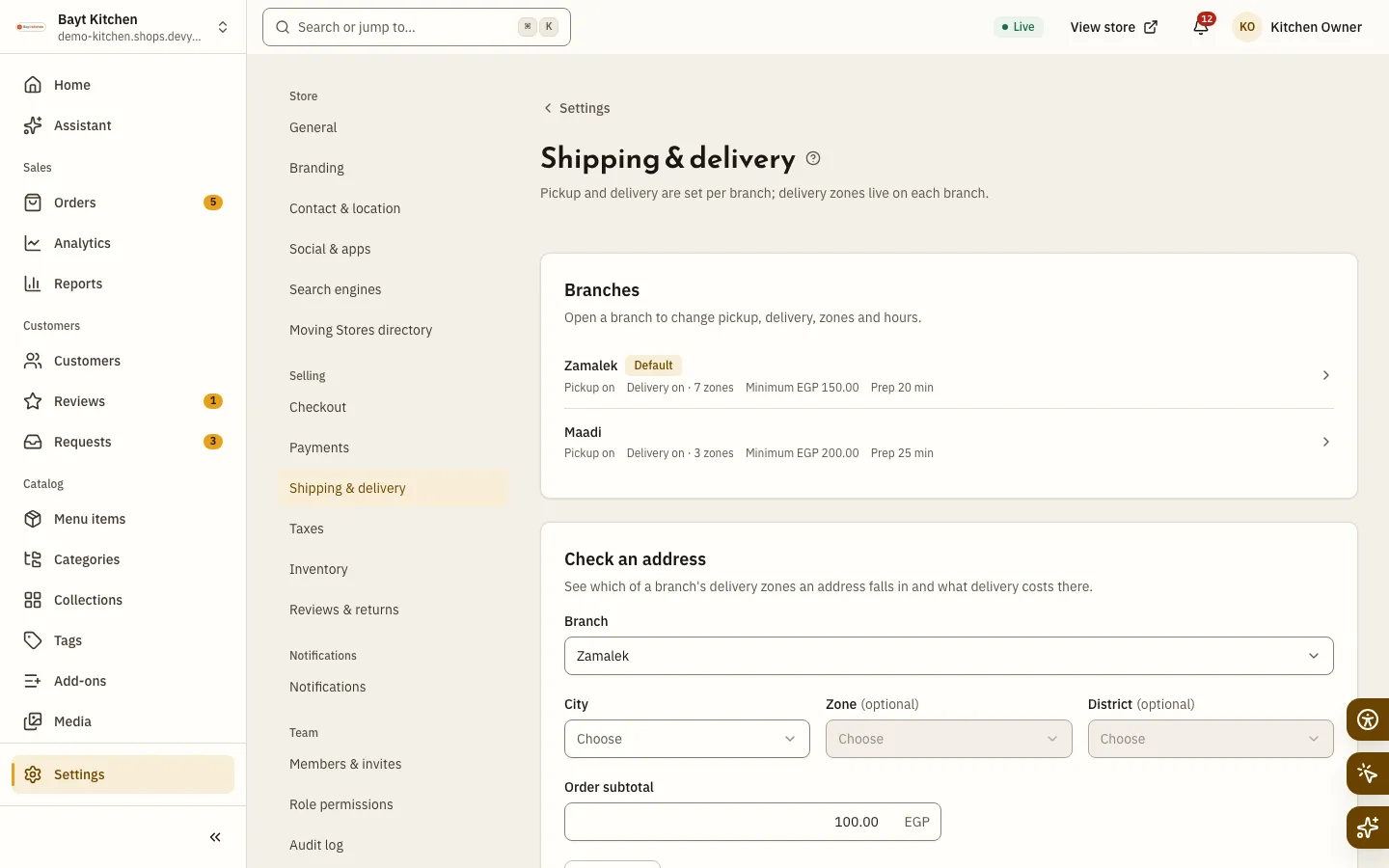
Pickup and delivery are set on the location itself. In a restaurant store, Settings › Shipping & delivery says: Pickup and delivery are set per branch; delivery zones live on each branch. It shows only the Branches card and the address checker: there are no shipping zones and no Bosta.
Turn on pickup
Step 1: From the sidebar, open Inventory › Locations in shop stores, or Branches › Branches in restaurant stores, then pick the location.
Step 2: In the Ordering tab, turn on Pickup, then click Save.
Ordering settings saved appears. The location must be active; otherwise Activate this location to turn on pickup or delivery. shows.
In shop stores you can also turn pickup on with each location’s switch in the Store pickup card of the shipping settings. Customers see pickup as free at checkout.
Set up a branch’s ordering
Step 1: Open Branches › Branches, pick the branch, then the Ordering tab.
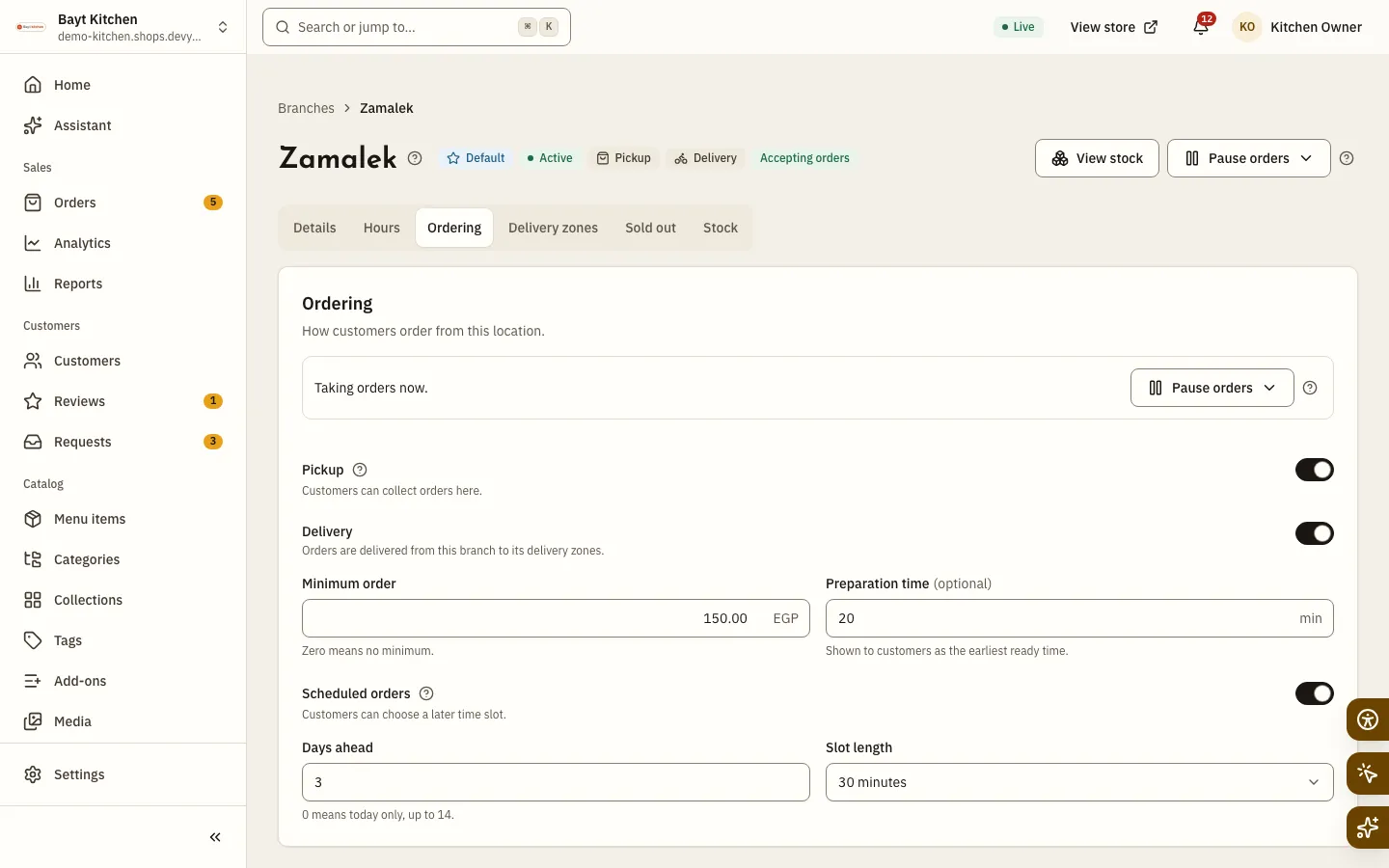
Fig. 2 —Each branch sets its own ordering. Step 2: Turn on Delivery, and enter the Minimum order and the Preparation time in minutes.
Zero as the minimum means no minimum. The preparation time is shown to customers as the earliest ready time.
Step 3: Turn on Scheduled orders if you want them.
Set Days ahead (0 means today only, up to
14) and the Slot length:15,30or60minutes.Step 4: Click Save.
To pause online orders for a while, click Pause orders at the top of the branch page or in the Ordering tab, and choose a number of minutes or hours, Until tomorrow’s opening or Until I resume. Orders already placed are not affected, and Resume orders opens them again. This needs the Pause or resume orders at a location permission.
Add delivery zones
Step 1: In the same branch, open the Delivery zones tab and click Add zone.
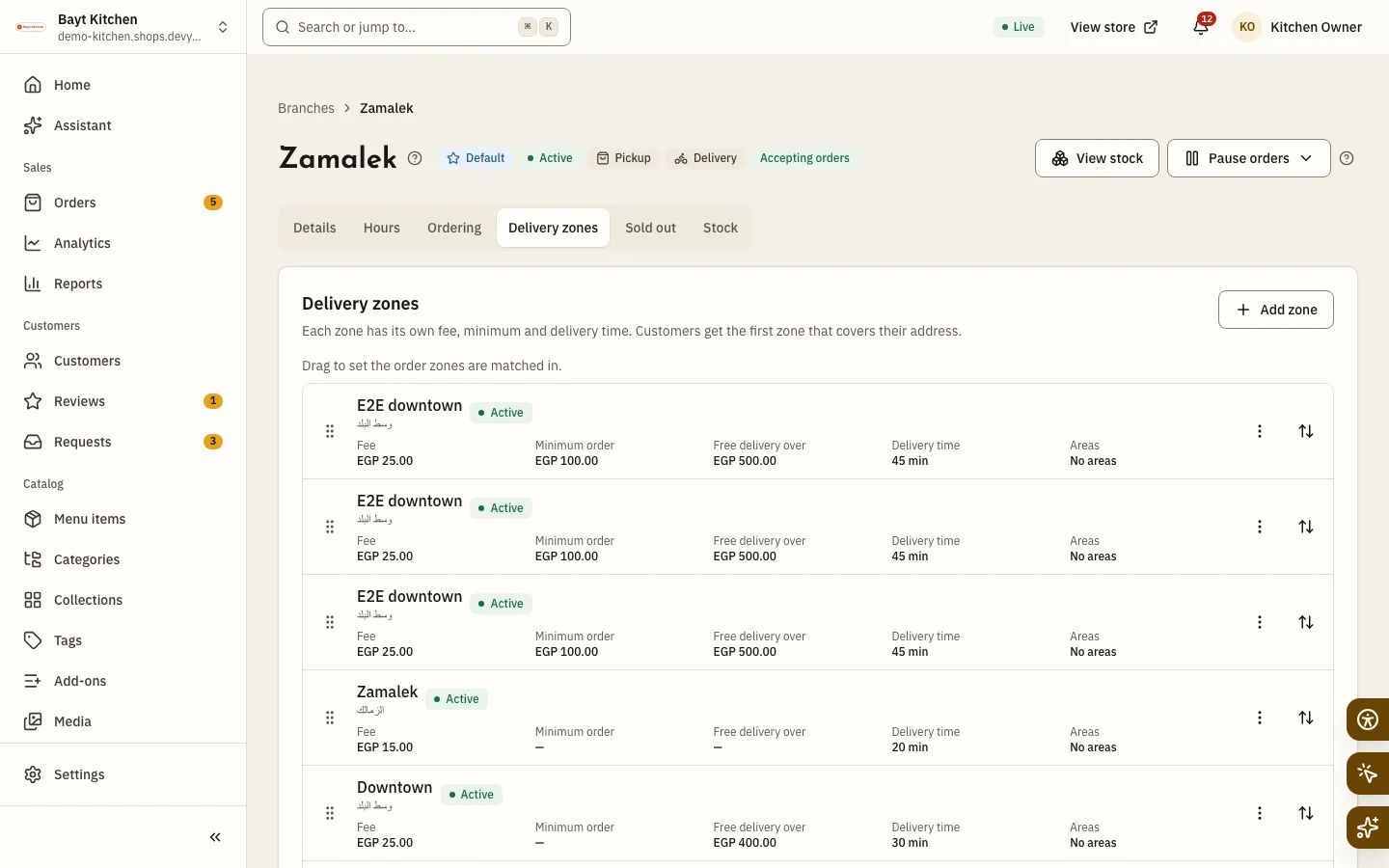
Fig. 3 —Drag the zones to set the order they are matched in. Step 2: Enter the Name, Fee, Minimum order, Free delivery over and Delivery time in minutes.
A fee of zero shows to customers as Free. Leave the two optional amounts empty if you don’t need them; without a zone minimum, the branch’s minimum applies.
Step 3: Choose the Areas it covers, keep Active on, then click Create.
Areas are cities, zones or districts. Inactive zones are skipped when an address is matched.
Step 4: Drag the zones to put them in order.
The order settles a match between two zones that cover the address equally.
- A customer’s zone is chosen like this: first the first zone whose map area holds their map location, then the zone that matches their address most precisely (district, then zone, then city), and otherwise the zone the customer picked when starting the order.
- There is no delivery radius around a branch. Map areas only come imported, from Moving POS or a file, and you can clear one with Clear map area; drawing them on a map isn’t available yet.
- If your store is linked to Moving POS, a zone’s name, fee and active switch come from it. Details in link your restaurant to Moving POS.
- Branch orders are delivered by your own drivers. When you mark an order Out for delivery, you can enter the Driver name and Driver phone.
- To check an address, pick the Branch and the address in Check an address in the shipping settings, then click Check to see the delivery zone, Delivery fee, Minimum order and Delivery time.
How is a customer’s delivery fee chosen?
From the branch’s delivery zone that matches their address. Each zone has its own fee, minimum order, free-delivery threshold and delivery time, and delivery is free once the items’ subtotal reaches Free delivery over.
Can I draw a delivery zone on a map?
Not yet. Pick cities, zones and districts, or use a map area imported from Moving POS.
What does my store need for delivery before it can launch?
An active location that offers pickup, or, in restaurant stores, an active branch with delivery on and at least one active delivery zone.