PaymentsChecked against the product on
Connect Paymob to take cards and wallets
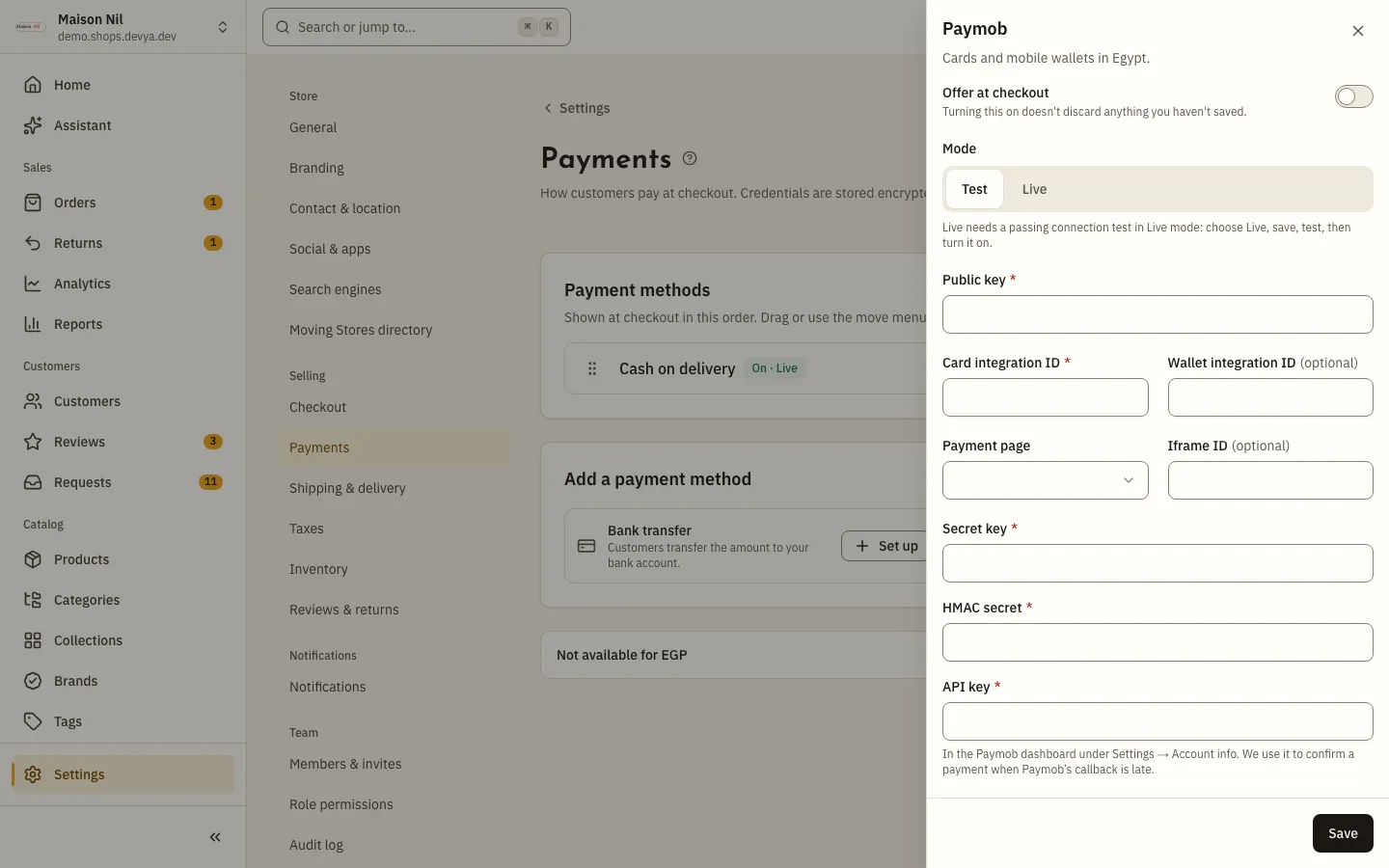
Connect your Paymob account to take cards and mobile wallets: enter your keys in test mode, paste the webhook address into Paymob, test the connection, then switch to live.
On this page
Before you start
- A store that sells in Egyptian pounds (
EGP). - A Paymob merchant account, with its test keys and its live keys.
- The Manage payment providers permission; the store owner has it.
- A verified email before you switch to live.
Paymob is Moving Stores’ online payment gateway. You connect your own Paymob account: the customer pays by card or mobile wallet on Paymob’s page, and Paymob tells your store how the payment went. Always start in test mode, and only switch to live after a passing test.
What the form asks for
| Field | Required? | Notes |
|---|---|---|
| Public key | Yes | From your Paymob dashboard. |
| Card integration ID | Yes | A whole number from your Paymob dashboard. |
| Wallet integration ID | No | To take mobile wallets. |
| Payment page | A choice | Leave it on Open the payment page. Inside the checkout opens Paymob’s iframe page instead, and needs the Iframe ID. |
| Iframe ID | No | Used only with Inside the checkout. |
| Secret key | Yes | Stored encrypted and never shown again. |
| HMAC secret | Yes | The HMAC secret from your Paymob dashboard, to verify its notices. |
| API key | Yes | In the Paymob dashboard under Settings → Account info. It confirms a payment when Paymob’s callback is late. |
Connect it in test mode
Step 1: Open Settings › Payments and click Set up next to Paymob.
Step 2: Leave the Mode on Test, enter your Paymob test keys, then click Save.
Paymob keys name their mode (
_test_or_live_), and a key for the other mode is refused when you turn it on. Every required field must be filled before you can turn it on.Step 3: Copy the Webhook address and paste it into your Paymob dashboard.
The address appears after the first save, with a Copy the webhook address button. Through it, Paymob tells your store the result of each payment.
Step 4: Click Test connection.
The button appears after the first save. Connected shows if the secret key and API key work, or Couldn't connect if they don't. With unsaved changes, Save your changes before testing. shows instead.
Step 5: Turn on Offer at checkout, then click Save.
The status becomes On · Test mode.
Switch to live
Step 1: Turn Offer at checkout off for now, and choose Live in Mode.
Live can only be turned on after a passing test in live mode; save with it on and Test the connection before going live. appears. Customers can’t pay by card until you turn it back on.
Step 2: Click Replace, enter your Paymob live keys, then click Save.
The Secret key, HMAC secret and API key are replaced together. Enter the live Public key too.
Step 3: Click Test connection and wait for Connected.
Step 4: Turn on Offer at checkout, then click Save.
The status becomes On · Live.
What your customers see
- At checkout Paymob shows under the name you set in Name at checkout, or “Card” if you left it empty, with a note that the customer is taken to a secure payment page.
- In test mode, a “Test mode” mark shows next to it.
- After placing the order the customer pays on Paymob’s page and comes back to your store, which checks with Paymob before it shows the order as paid.
- If the customer doesn’t finish paying before the time runs out, the order is cancelled.
Payments and refunds on the order
On an order paid with Paymob, the Payments card shows Check status, Capture and Release depending on the payment’s state. To refund, choose Refund among the order’s actions and leave the Refund method on Original payment: the money goes back to the customer through Paymob. Details in manage orders.
Where do I paste the webhook address?
In your Paymob dashboard. Copy it from the Paymob form in Settings › Payments; it appears after the first save.
Why can’t I switch to live?
You need a verified email, live keys, and a passing connection test in live mode after the last time you saved the keys.
Does Paymob work for a store in Saudi riyals?
No. In Moving Stores, Paymob takes Egyptian pounds only, and stores in other currencies see it in the list of methods not available for their currency.
Can I remove Paymob?
Yes, with Remove in its form, unless it has pending payments. Its settings and keys are deleted; orders already paid with it are not affected.